Firmware Recovery
In some very rare cases, some Passport users can find themselves unable to upgrade their Passport firmware using the normal procedure. The following steps should only be carried out if instructed to do so by a member of the Foundation team.
- Download and install Balena Etcher on your computer.
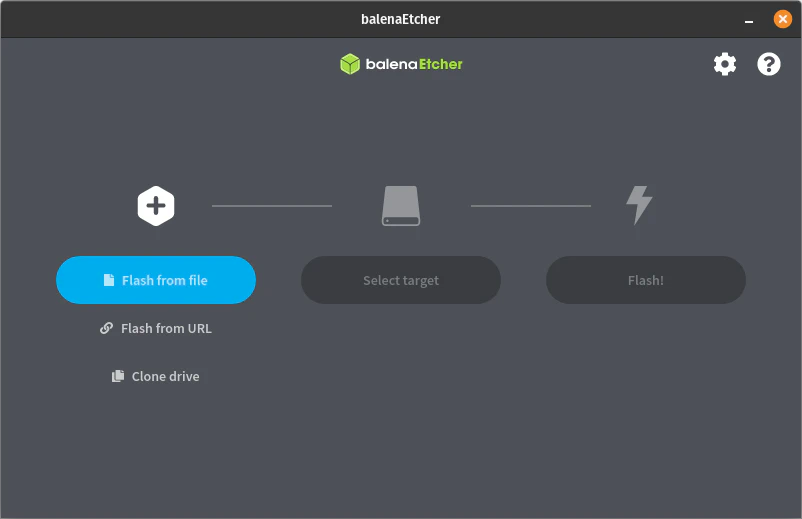
Insert a microSD card into your computer. The following steps will erase all data on the SD card.
Download the latest firmware version for your Passport.
Open Balena Etcher and click Flash from file. Then choose the downloaded firmware file ending in .bin.
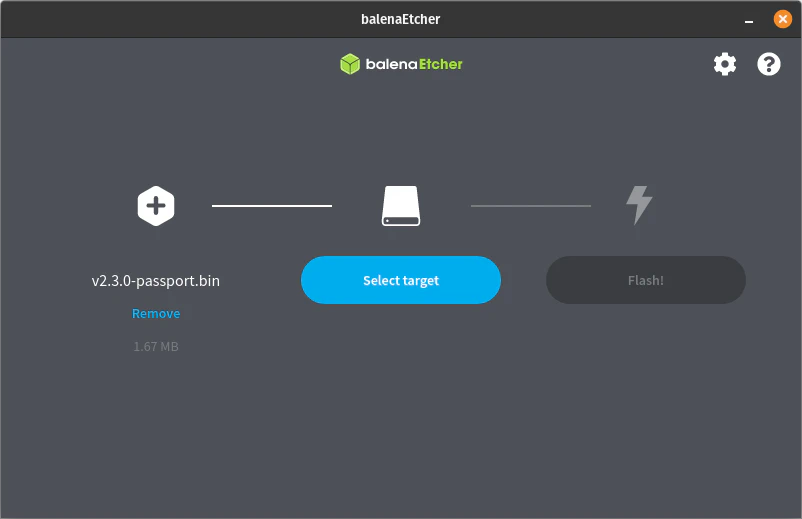
- Click Select target and choose the SD card that is inserted to your computer.
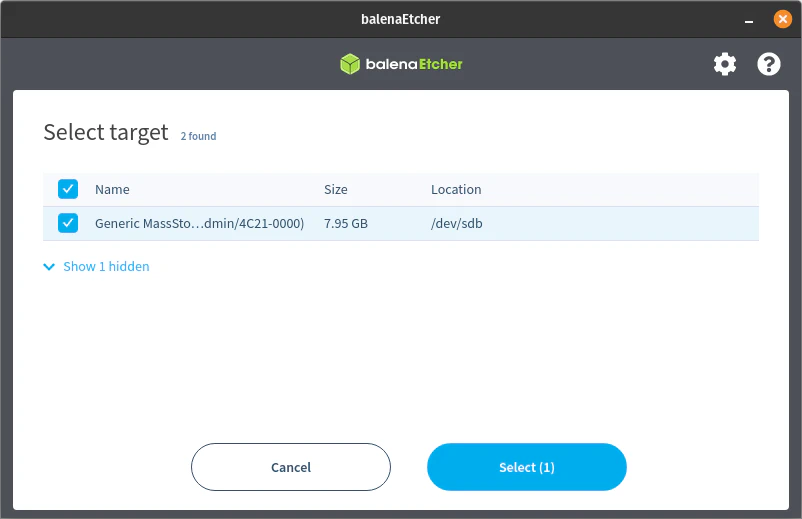
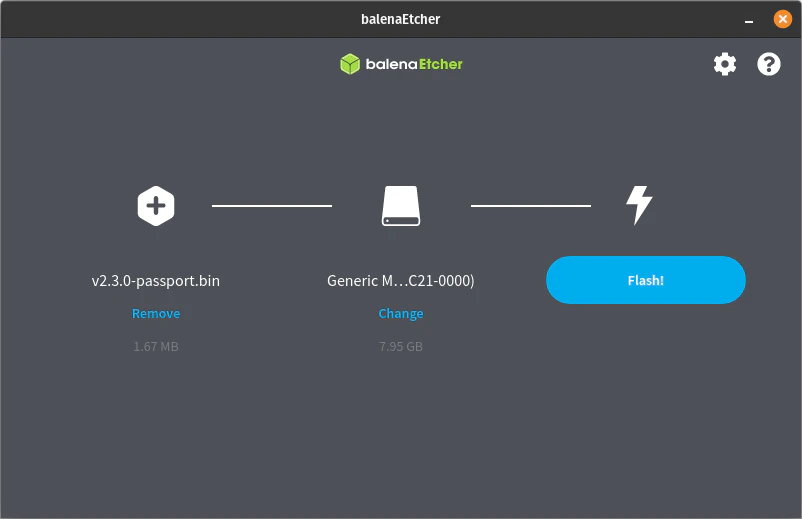
- Click Flash! This will write the firmware file as an image to the SD card. Once complete, remove the SD card and insert into the top of Passport.
Power on Passport and press 9 immediately when the device is loading.
After a few seconds you’ll be asked if you want to install the firmware. Tap the copper colored button on the right of Passport to accept.
The device will install the firmware, reboot and ask you to enter your PIN.
Your device is now ready for use again.
Reformat the SD card in Passport in Advanced > microSD to be able to use the card once more for backups and traditional firmware updates.