Welcome to Passport Prime! This guide walks you through the simplest way to set up your Passport Prime. This includes our simple and private Magic Backups to help you seamlessly protect your Master Key and device data. Passport Prime safety, handling and support can be found here .
For manual backups, follow the Manual Setup guide . During onboarding, tap Advanced on Passport Prime's Create Magic Backup screen. The Magic Backups toggle in Envoy controls the Envoy mobile wallet, not Passport Prime's backup choice. Envoy is still used for the initial connection and security check; manual backups do not mean phone-free onboarding.
If you have any questions, please email us at hello@foundation.xyz
Step 1: Unboxing
Let’s unbox your Passport Prime!
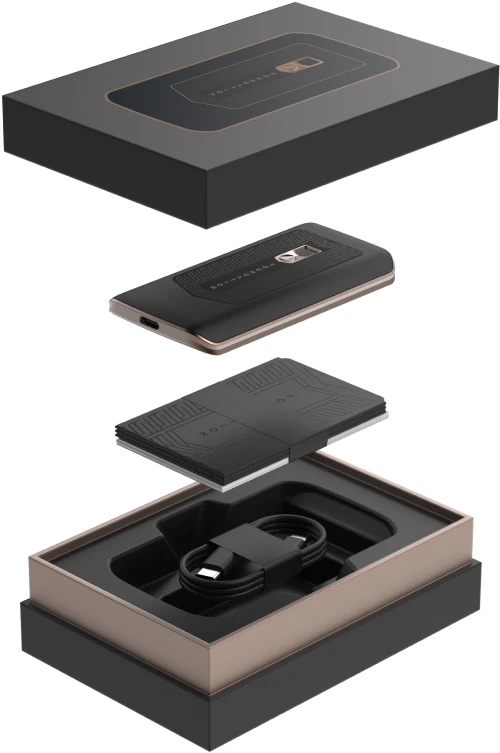
Passport Prime ships in a plain outer overpack box.
Device Box
The device box is sealed with a layer of adhesive bubble wrap followed by a layer of shrink wrap. It contains:
- Passport Prime
- Setup card
- 3x Keycards + Faraday sleeves
- USB-C charge cable
If the seal is broken, the packaging has been unexpectedly opened, or the device appears altered, pause setup and contact Foundation support at hello@foundation.xyz . Do not open the device yourself or assume it is safe to use because a software check passes.
Customs officials may open a package for inspection. Passport Prime's Security Check helps verify its cryptographic identity, but does not establish the absence of every physical modification or implant. Unexpected packaging or device changes still need review by Foundation support.
Step 2: Initial Setup
First Power On
After turning on Passport Prime for the first time, you will arrive at the welcome screen where you'll have an opportunity to read the device terms of use. After doing so, you will be met with a QR code. Simply open your phone's built in camera app and scan this QR code and tap the link that will be shown to you.
- If you already have Envoy installed, the app will open and begin the Passport Prime onboarding connection flow.
- If you do not have Envoy installed, you will be taken to your phone's app store to download it.
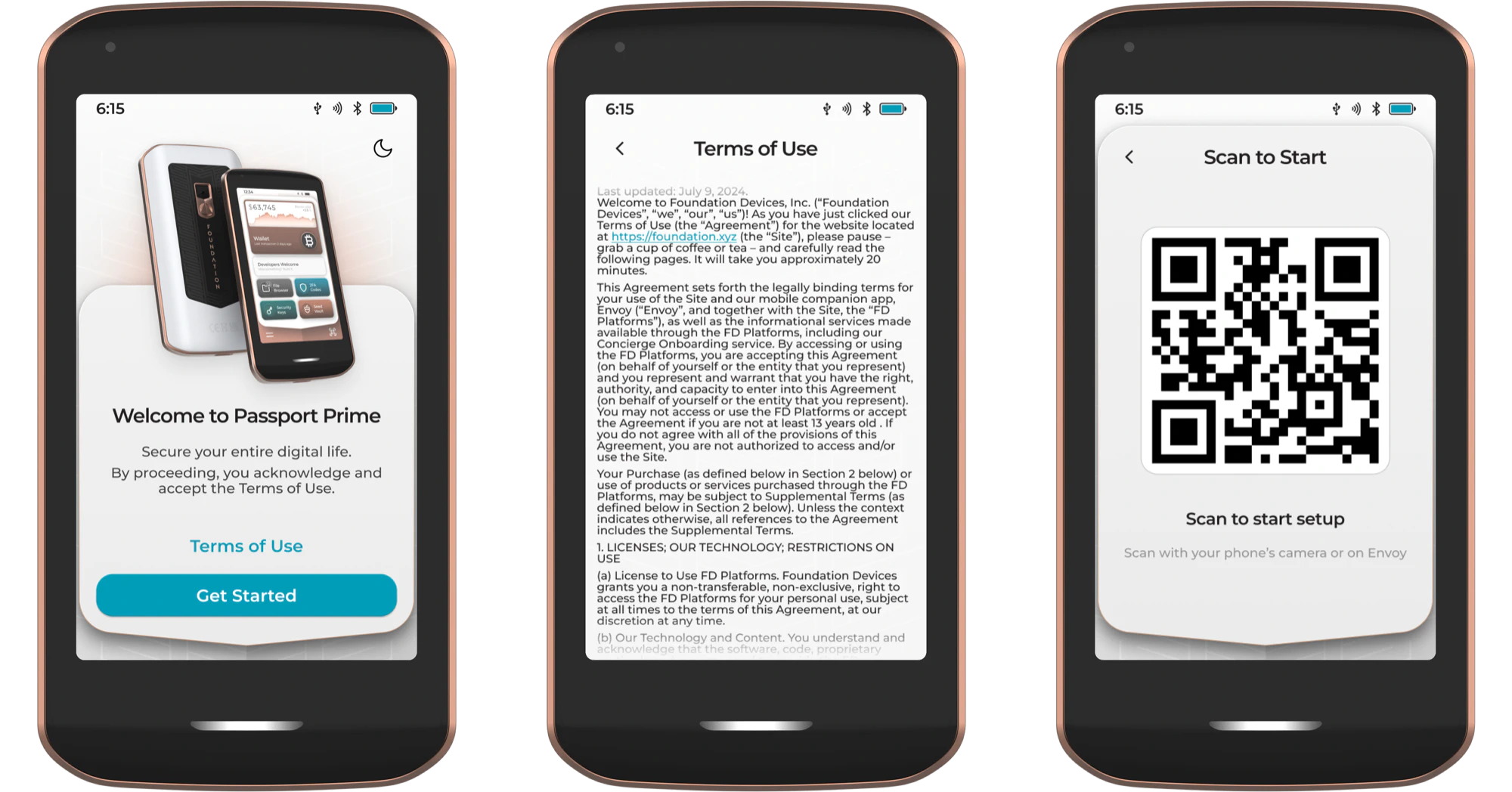
Envoy is our Passport companion app, designed from the ground up to make everything you do on Passport Prime simple and intuitive. Envoy walks you through everything from device setup to firmware updates and, of course, transacting securely with Passport Prime.
Connect with Envoy
With Envoy at the start of the Passport Prime onboarding flow, tap Continue, then tap Connect with QuantumLink.
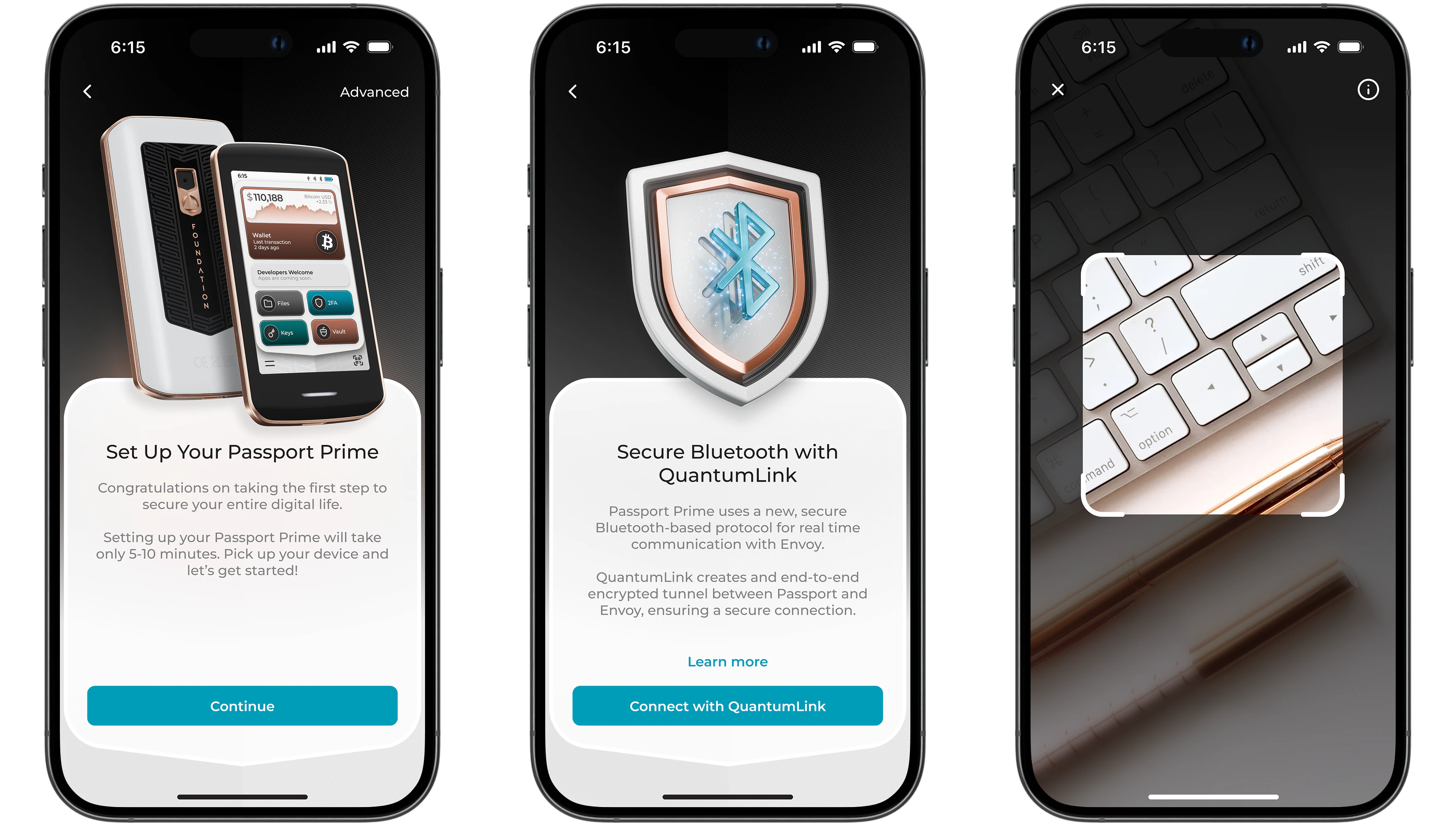
After granting Bluetooth permissions, Envoy's camera will open and Passport Prime will now be showing a new animated QR code series for you to scan.
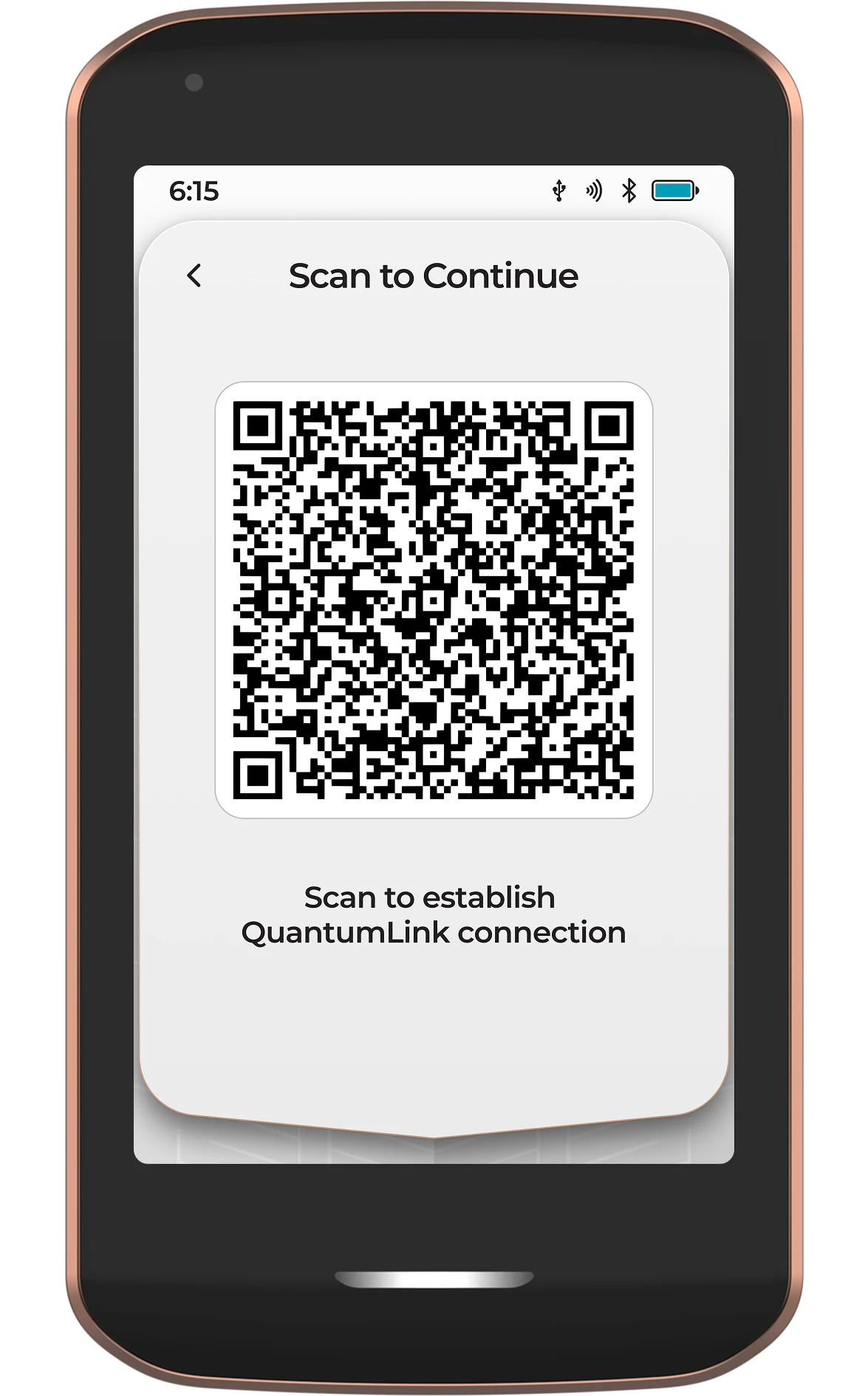
Once Envoy has scanned the QR code from Passport Prime, the secure QuantumLink tunnel has been established and both devices will continue the rest of the setup process in sync.
If you get stuck at any point during setup, you can restart the initial setup flow by tapping the home button. If a QR scan does not work as expected, Passport Prime will guide you through what to try next.
Want to learn more about QuantumLink? Tap the 'Learn More' button in Envoy, or follow this link .
Security Check
Passport Prime is provisioned with a device identity key in its secure element. Foundation records the corresponding public key. The validation server checks a signature from the device against that record to help establish authenticity. A passing result is not a guarantee that every part of the device is unmodified or that no physical implant is present.
During this step, Passport Prime will automatically carry out a security check with the Foundation validation server, via Envoy, using QuantumLink.
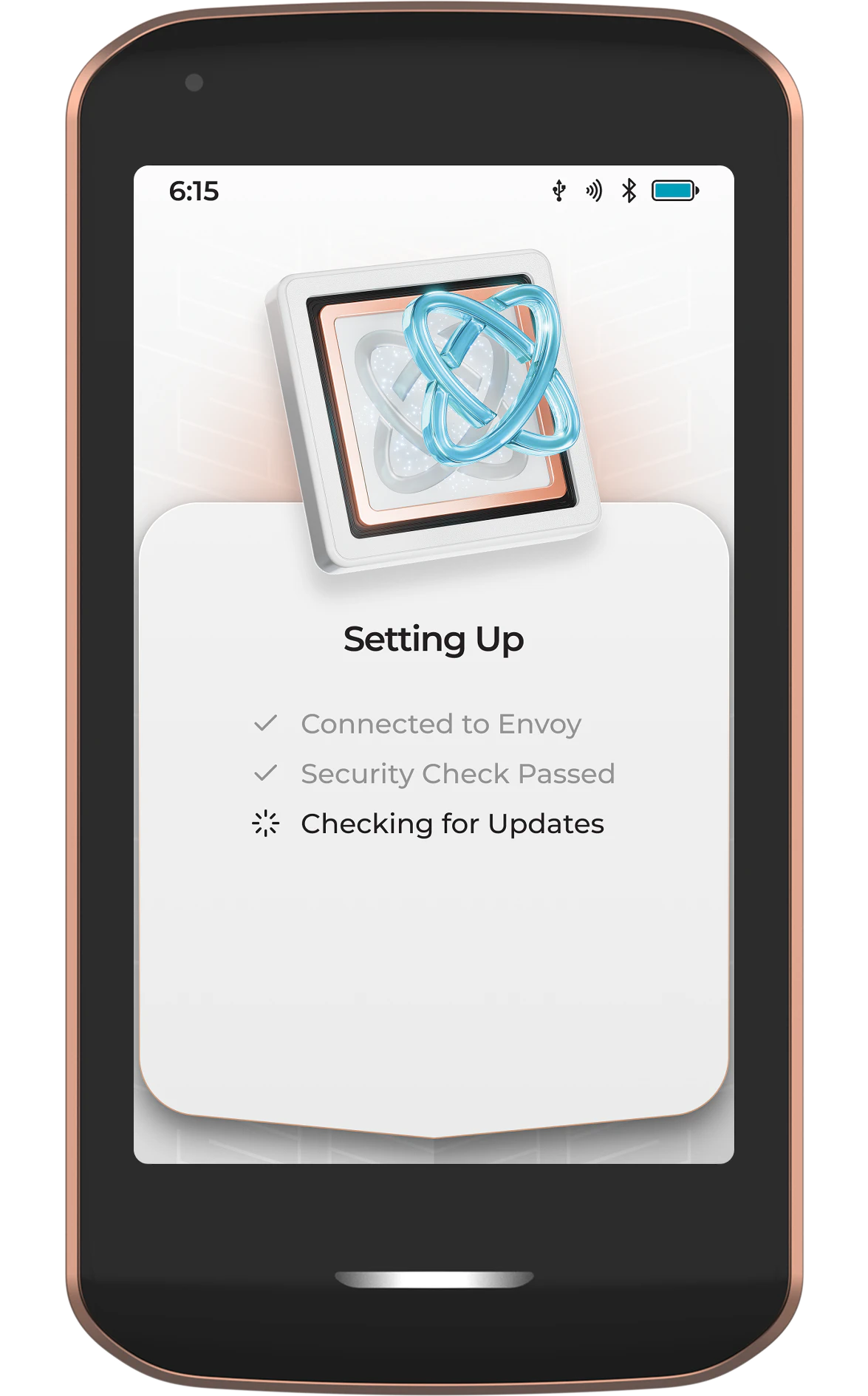
If your device fails this Security Check, it may have been tampered with or swapped out with a malicious device during shipping. In the unlikely event that this occurs, please contact us via email .
Firmware Update
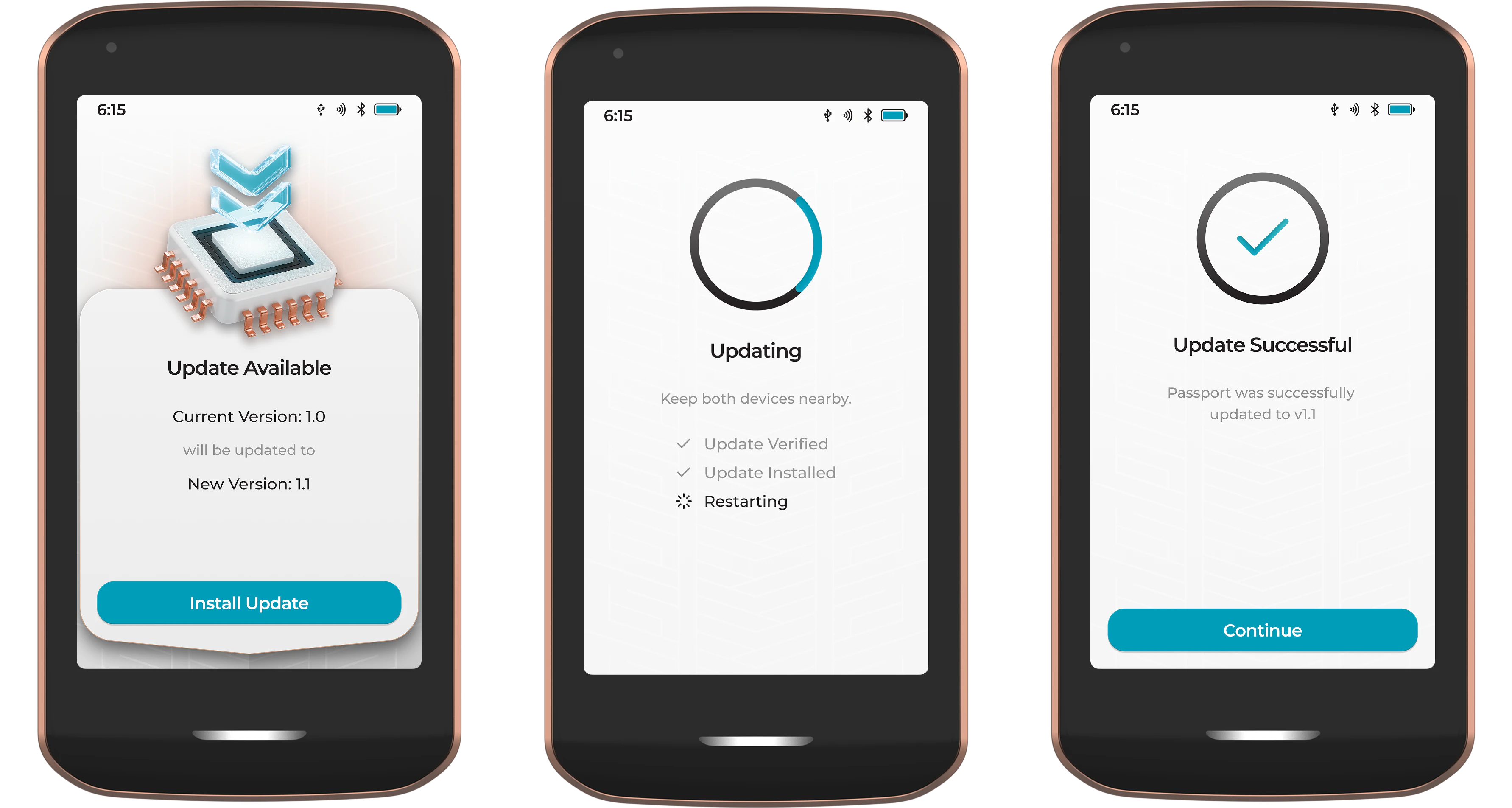
Passport Prime will then automatically check if there is a new firmware version available for your device. If there is, you will be prompted to start the install.
After starting the install, Passport Prime will use its secure QuantumLink connection with Envoy to automatically download, verify, and then install the new update. Once the update has been installed, Passport Prime will automatically restart.
Step 3: Set a PIN
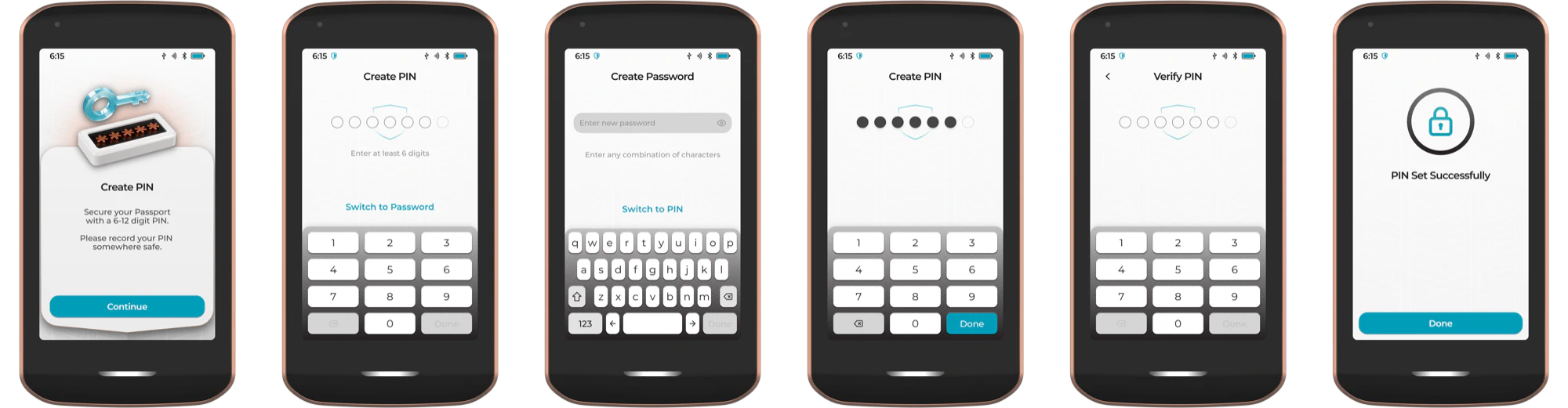
A 6-12 digit PIN is used to protect unauthorized physical access to your device. The default PIN is numerical, but you have the option to Switch to Password to set a longer, more complex alphanumeric password.
Please ensure you do not set a PIN that is easily guessable (eg 123456). We recommend that you write it down during this step and store it in a safe, secure location.
Passport Prime will erase the Master Key after 10 consecutive incorrect PIN/Password attempts. After which point you must reinitialize the device with a new PIN and recover the Master Key from a backup.
Step 4: Master Key
Creating a new Master Key
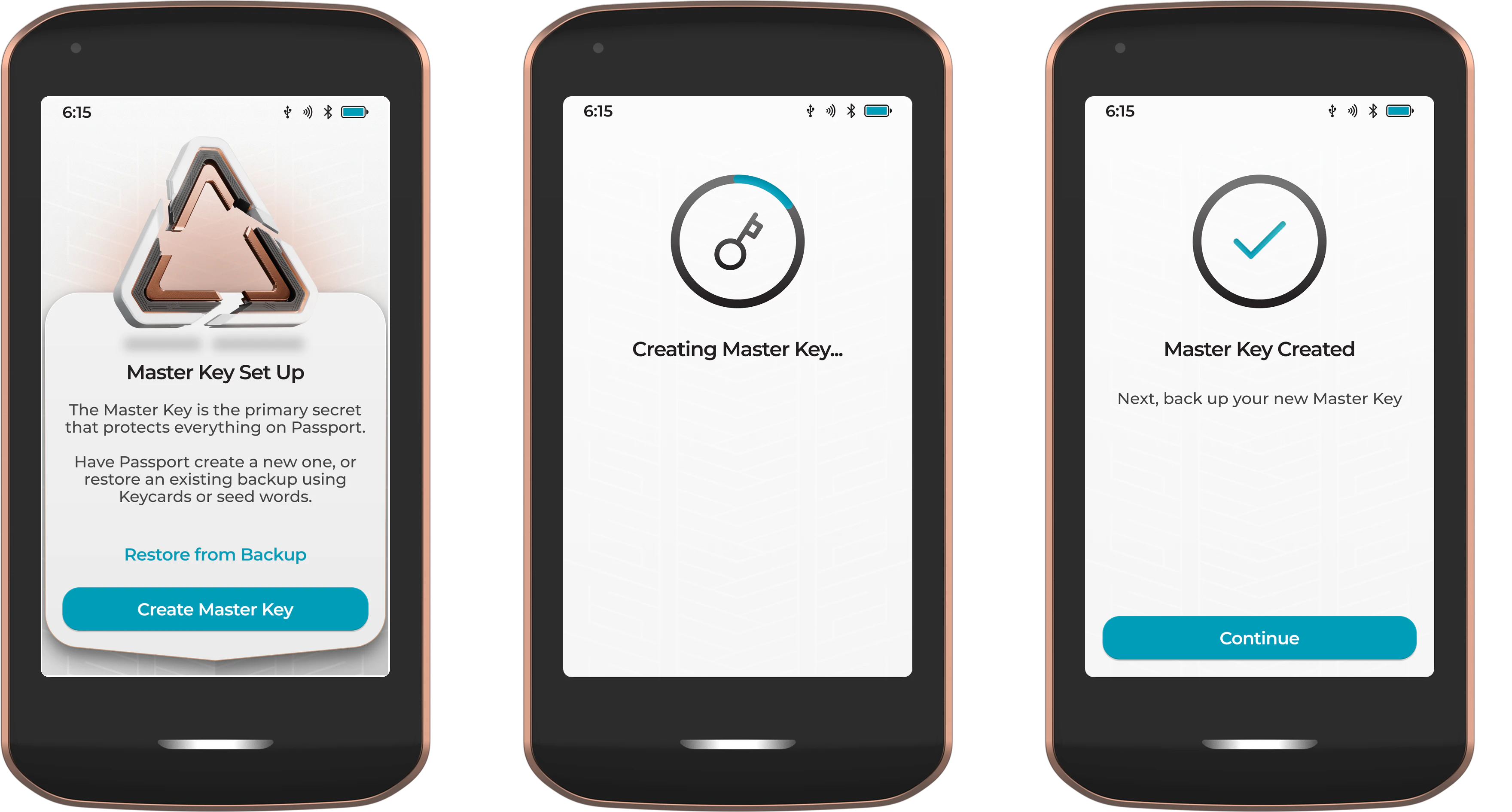
Next Passport Prime will securely generate a brand new Master Key using multiple sources of randomness from its internal hardware. This includes the MCU, Secure Element and Avalanche Noise Source .
For those users starting with a new Passport Prime and requiring a new Master Key, simply tap Create Master Key. Advanced users who would rather supply their own randomness can read about User Added Entropy .
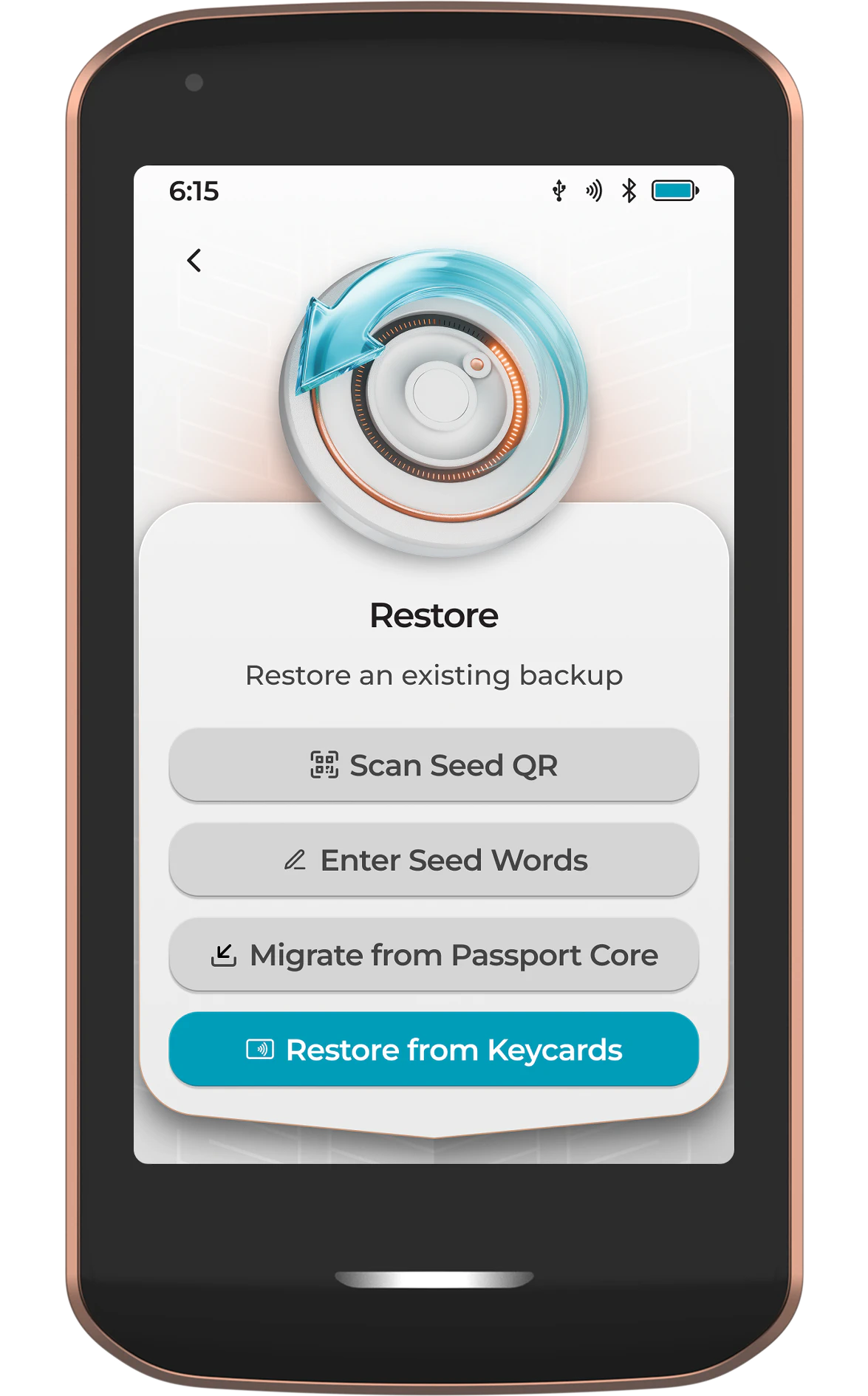
Restoring a Master Key
For those users wanting to Restore an existing Master Key from a previous Passport or other compatible wallet, tap Restore. From the next screen, users can restore via:
- Seed QR
- BIP39 seed words
- A Passport Core encrypted backup (microSD + 20 digits)
- Using Keycards from this, or another Passport Prime
Step 5: Magic Backup
Next it's time to create a secure and resilient Magic Backup of your Passport Master Key.
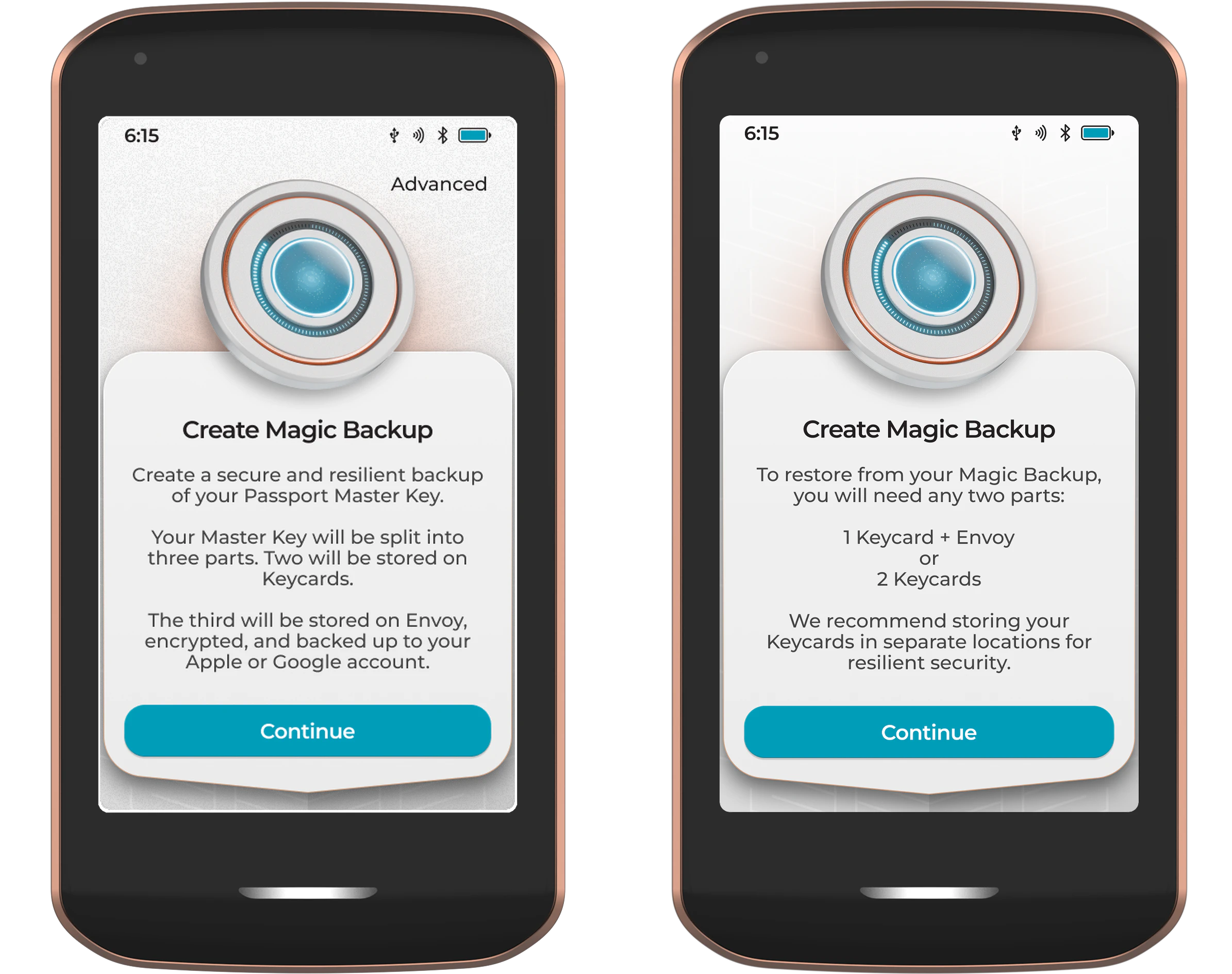
Your Master Key will be split into three parts using the Shamir Secret Sharing protocol. Two parts will be stored on the provided Keycards, with the third part being stored on Envoy, encrypted, and backed up to your Apple or Google account.
Prefer to keep your backup fully offline, or write down seed words instead? Tap Advanced in the top right of this screen to opt out of Magic Backups and choose a manual backup option. See the Manual Setup guide for details.
To restore from your Magic Backup, you will need any two parts:
- 1 Keycard + Envoy or...
- 2 Keycards
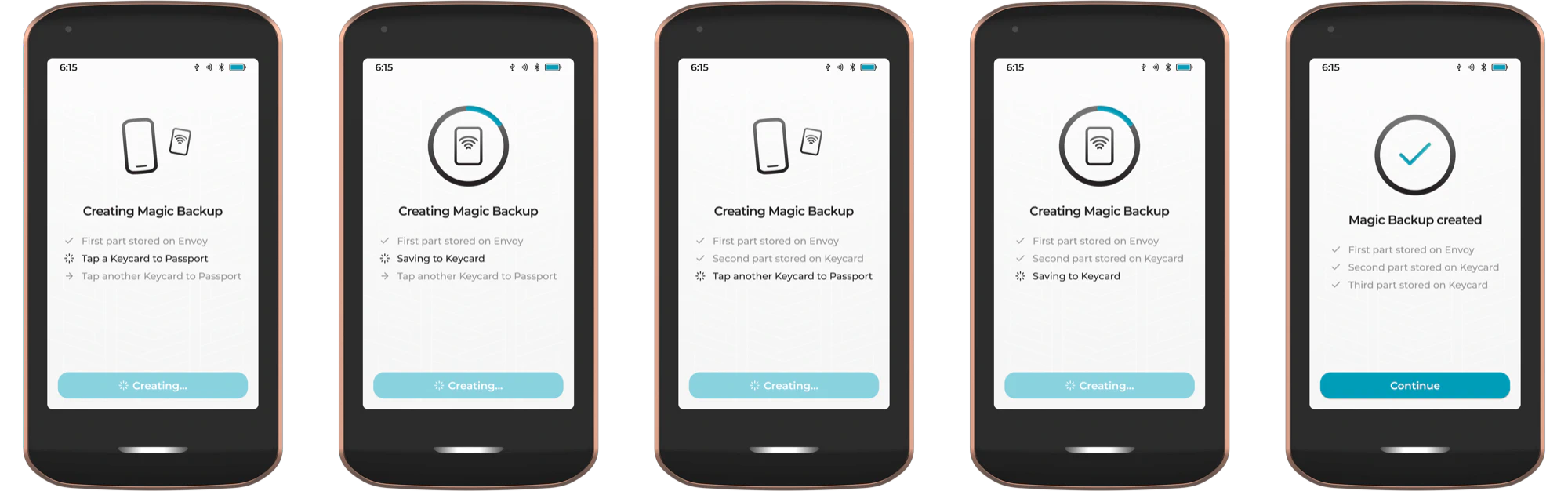
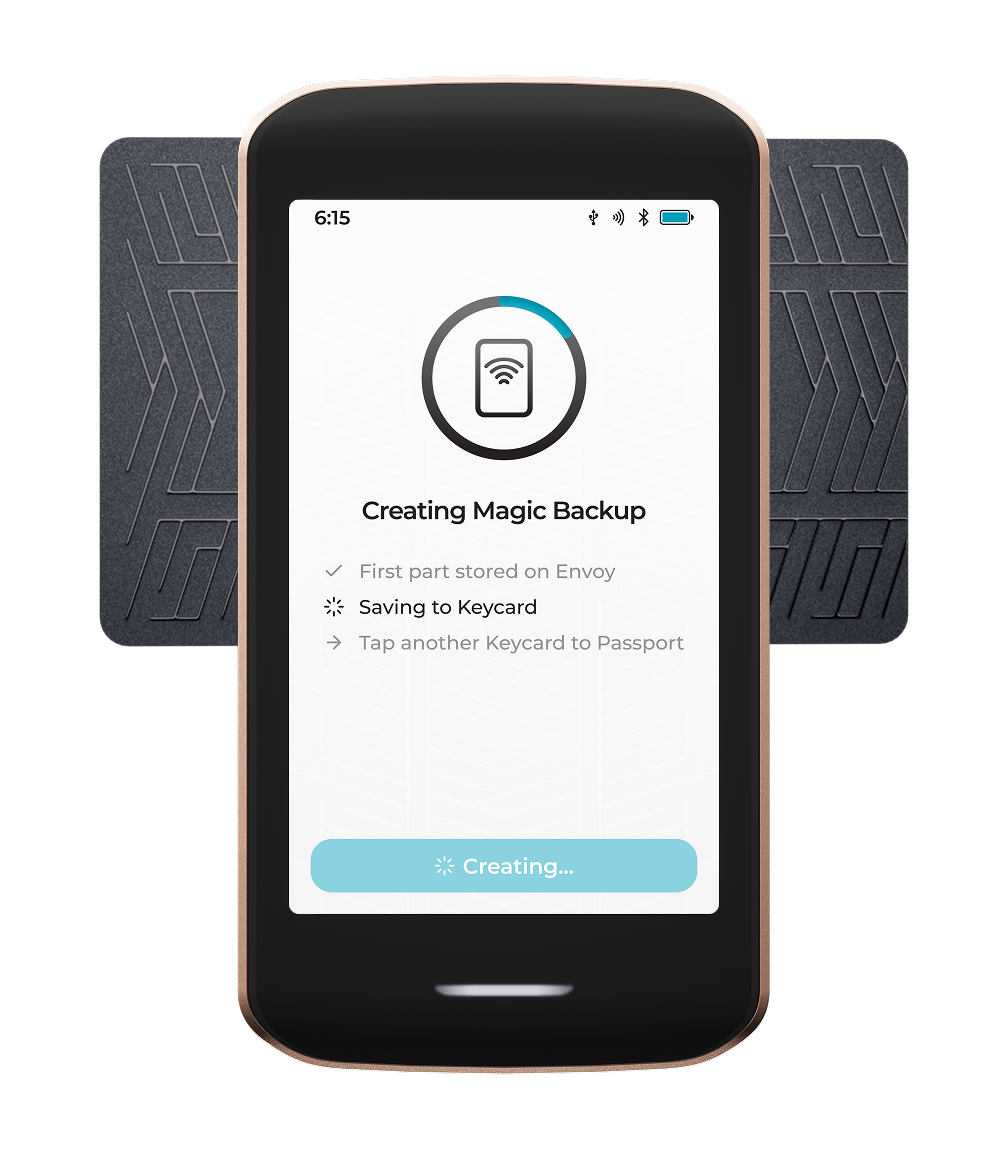
When prompted to tap a Keycard, center it horizontally over the camera area on the back of Passport Prime to form a "T" shape. Hold the card between your thumb and index finger, off to the side, do not cup it in your hand or place your hand behind the card, as this can cause NFC interference. Hold completely still and wait for the on-screen confirmation before moving it. If you are using a Passport Prime case, remove it first. For more NFC tips, see Troubleshooting .
Passport Prime ships with three Keycards, but only uses two during the default Magic Backup setup. Keep the third somewhere safe for use as a replacement, should something happen to one of the existing cards.
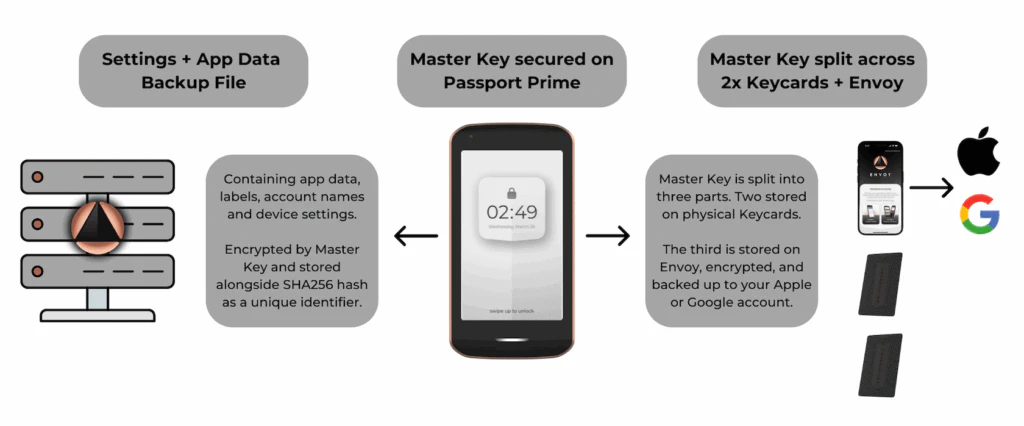
It requires a compromise of TWO items for an attacker to restore your Master Key. That could either be both physical Keycards, or a single Keycard plus a phone logged into your chosen cloud account. We strongly recommend storing your Keycards in separate locations for resilient security.
Finally Passport Prime will use the new Master Key to create your Primary Bitcoin account, then share the public details of this account with Envoy via QuantumLink. You will then be taken to the home screen.
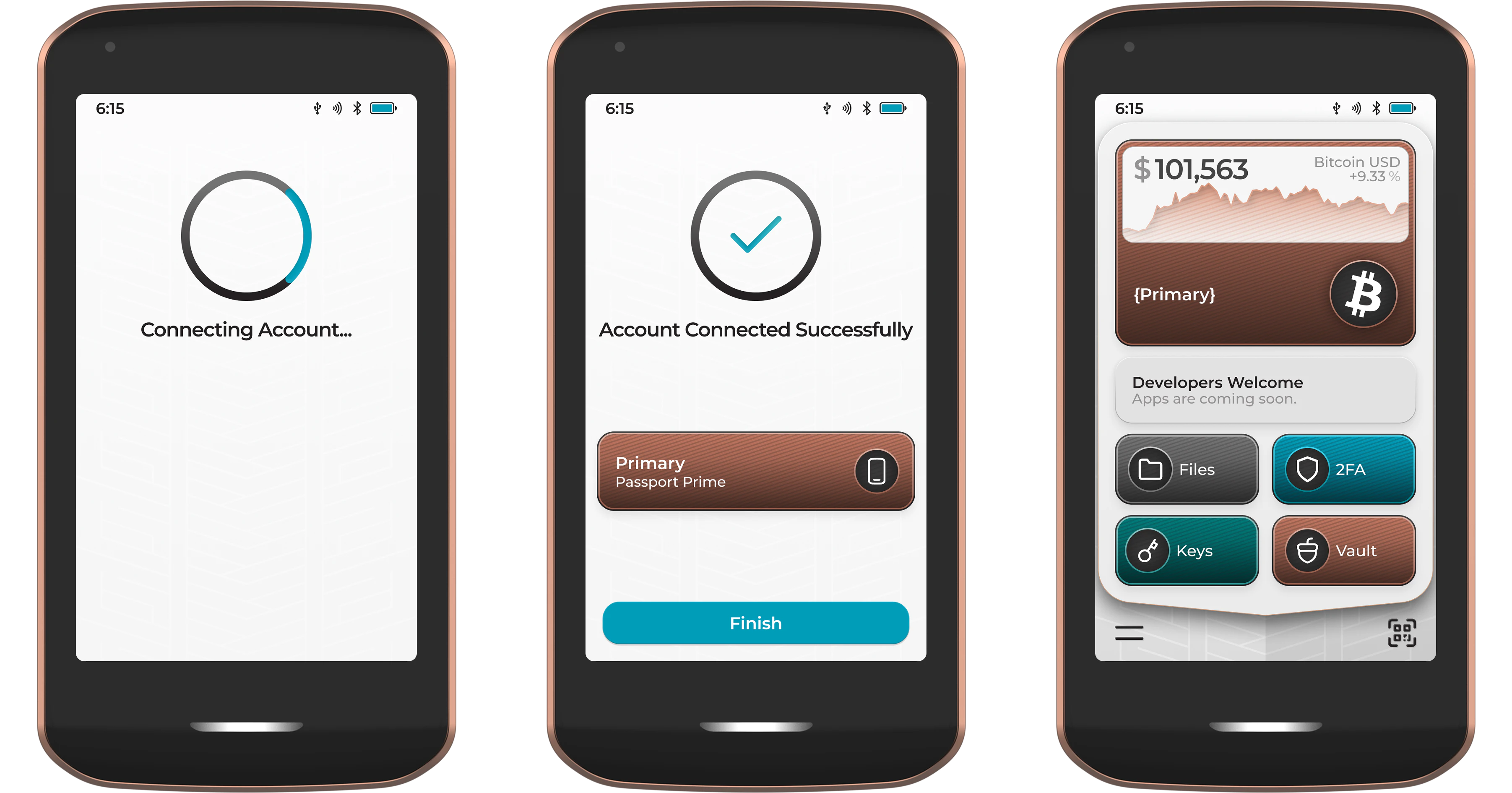
You're All Set! Your new Passport Prime is now ready to use.
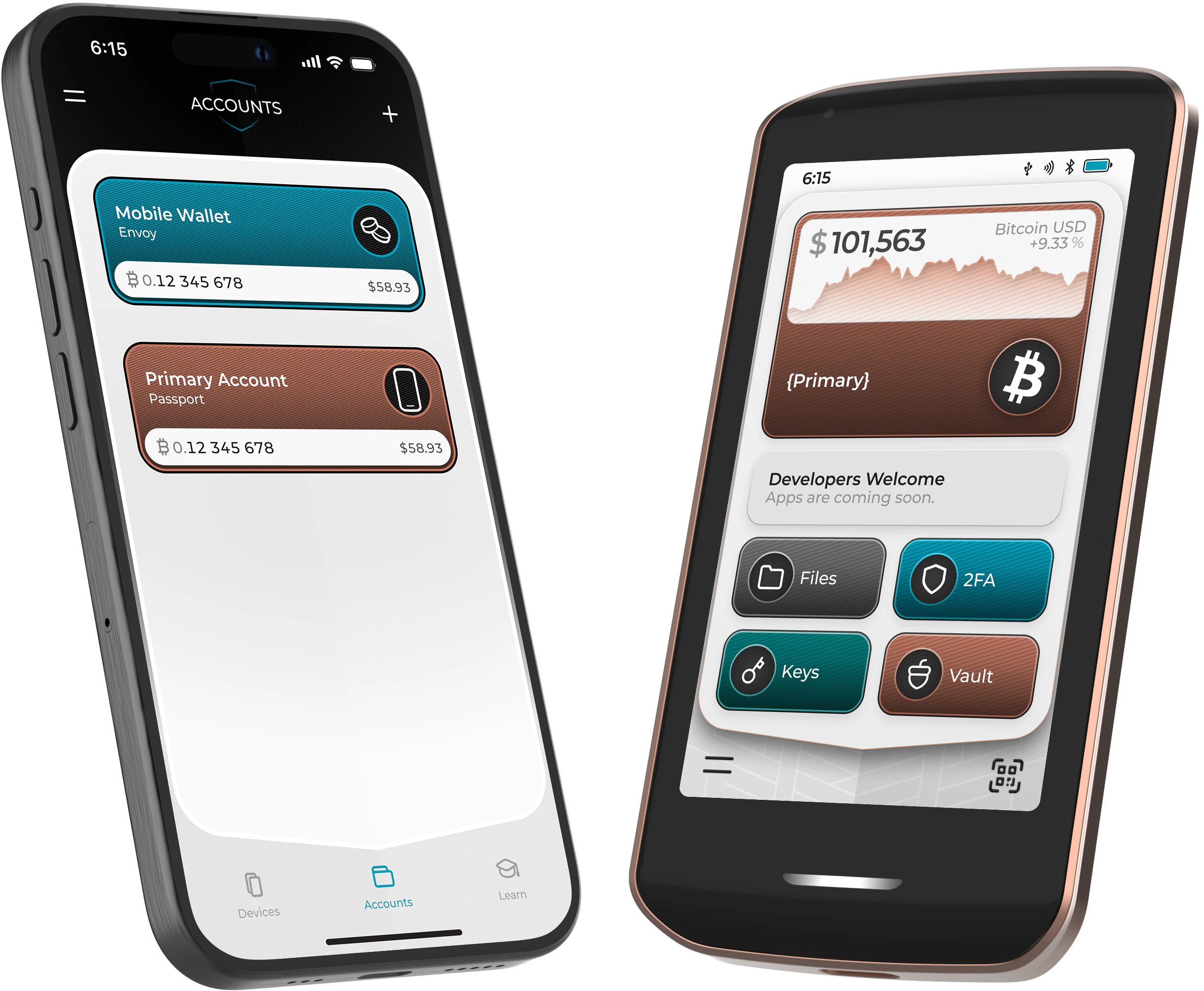
Now that you’ve set up Passport Prime and paired it securely to Envoy via QuantumLink, be sure to dive into the rest of our detailed documentation to get the most from your new device.
Want to learn more about Passport Prime backups and recovery? Click here .
Stay tuned for more video tutorials featuring Passport Prime in the coming weeks and months!
Questions? Email us at hello@foundation.xyz