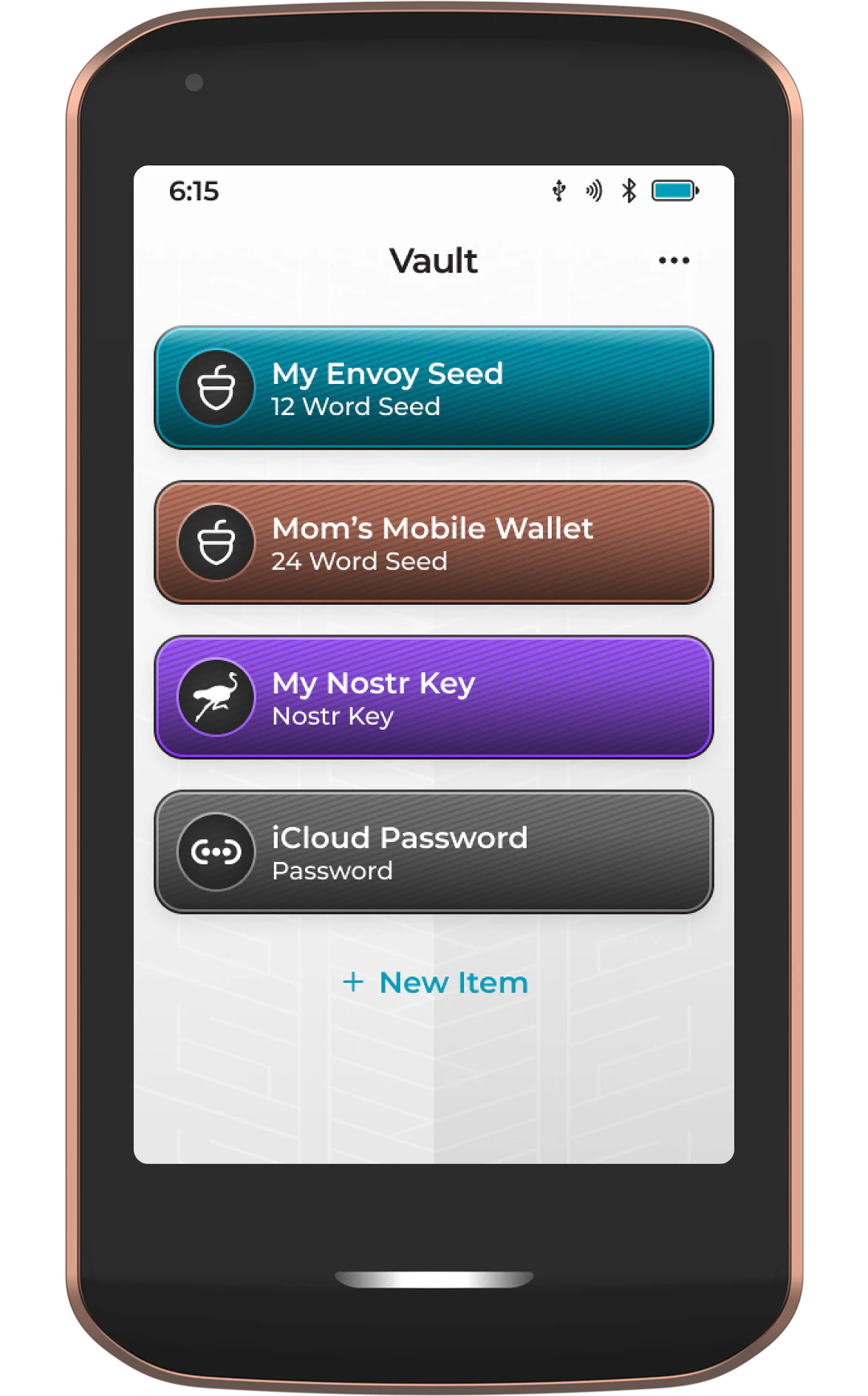
The Vault app on Passport Prime allows for the creation of BIP-85 defined 12- or 24-word 'child seeds', as well as NIP-06 defined Nostr private keys. You can also import existing seeds and passwords that you already hold.
When you allow Passport Prime to generate these items for you, it does so in a deterministic fashion from the onboard Passport Prime master key. This enables a single backup for potentially hundreds of different wallets and accounts.
In addition to deterministically generating your Bitcoin and Nostr keys, you can generate and store passwords for your online accounts. This makes the Vault app your secure and offline environment for storing and managing the most crucial parts of your digital life.
Common Uses
Here are some of the ways you can leverage Passport Prime's Vault app:
- Backing up your online account passwords in a secure and offline environment
- Populating all of your mobile wallets using unique child seeds from Passport Prime. If you lose any of those mobile wallet backups, Passport Prime can re-derive the seeds, so that your funds are not lost.
- Populating the wallets of your friends and family while you sleep soundly, with the knowledge that in the event they fail to properly back up their wallet, you can re-derive their seed and bail them out at any time.
- Securely generating and backing up your Nostr private key.
- Securely generating and backing up your loved ones’ Nostr private keys. If they lose access, once again you can bail them out and restore access to their Nostr account for them.
Thanks to Passport Prime's optional Magic Backups, your Vault items are automatically encrypted and backed up for you.
Adding a Vault Item
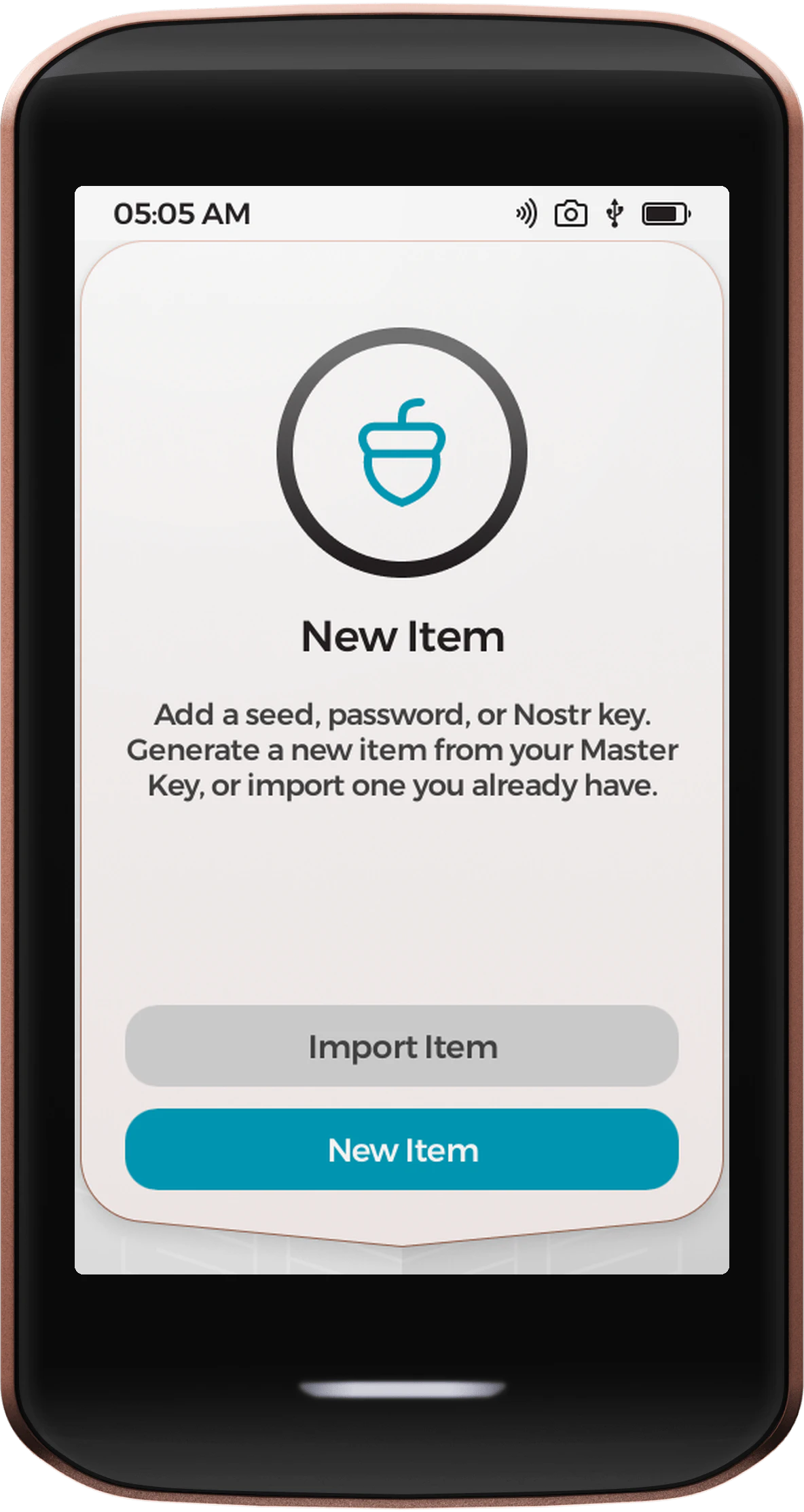
Every Vault item is either generated by Passport Prime or imported from a key or password you already hold. When your Vault is empty, you'll see two options: tap New Item to have Passport Prime generate an item for you, or Import Item to bring in an existing one. Once you have items saved, both options live behind the three-dot menu icon.
Generating a New Item
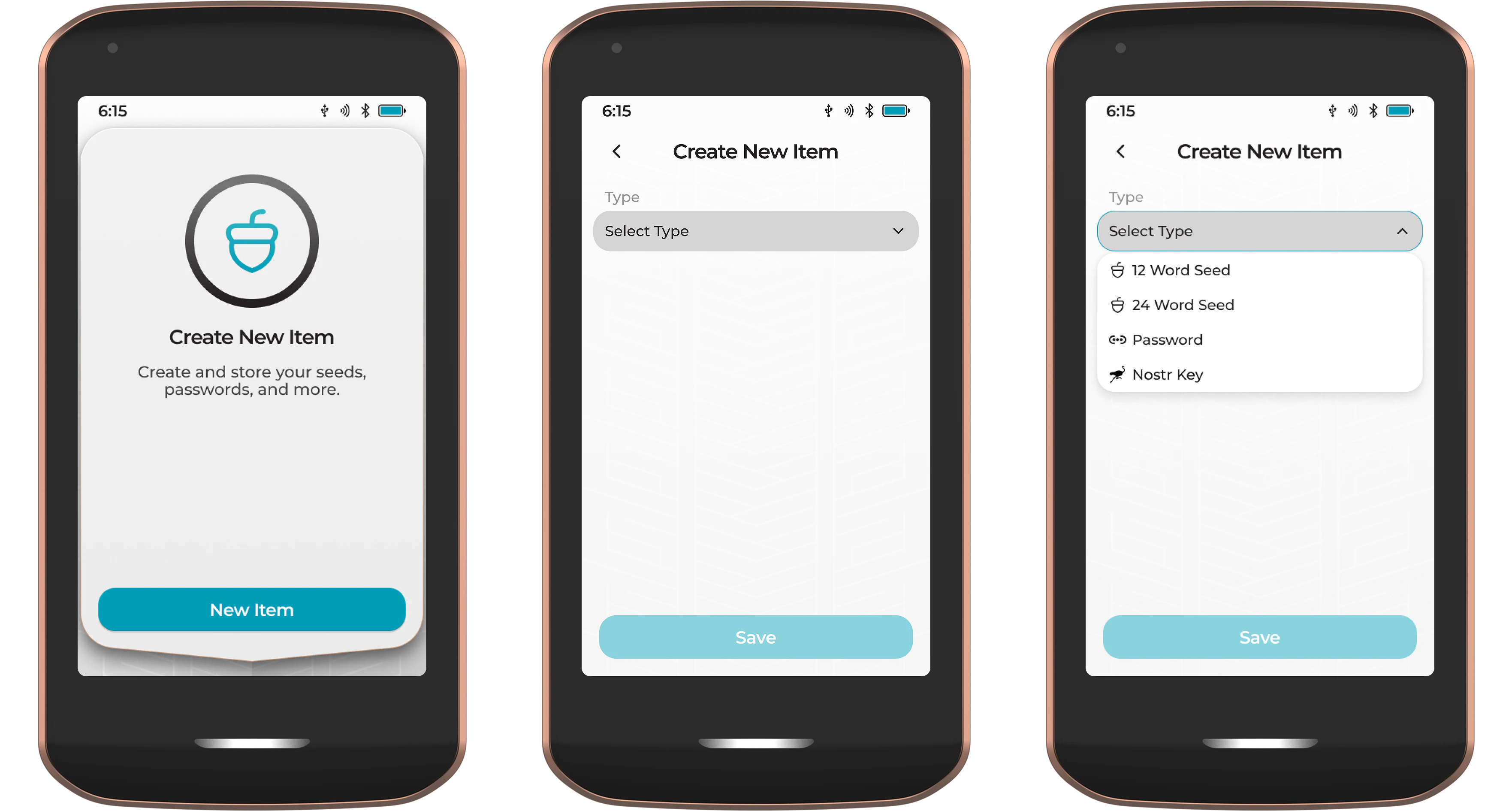
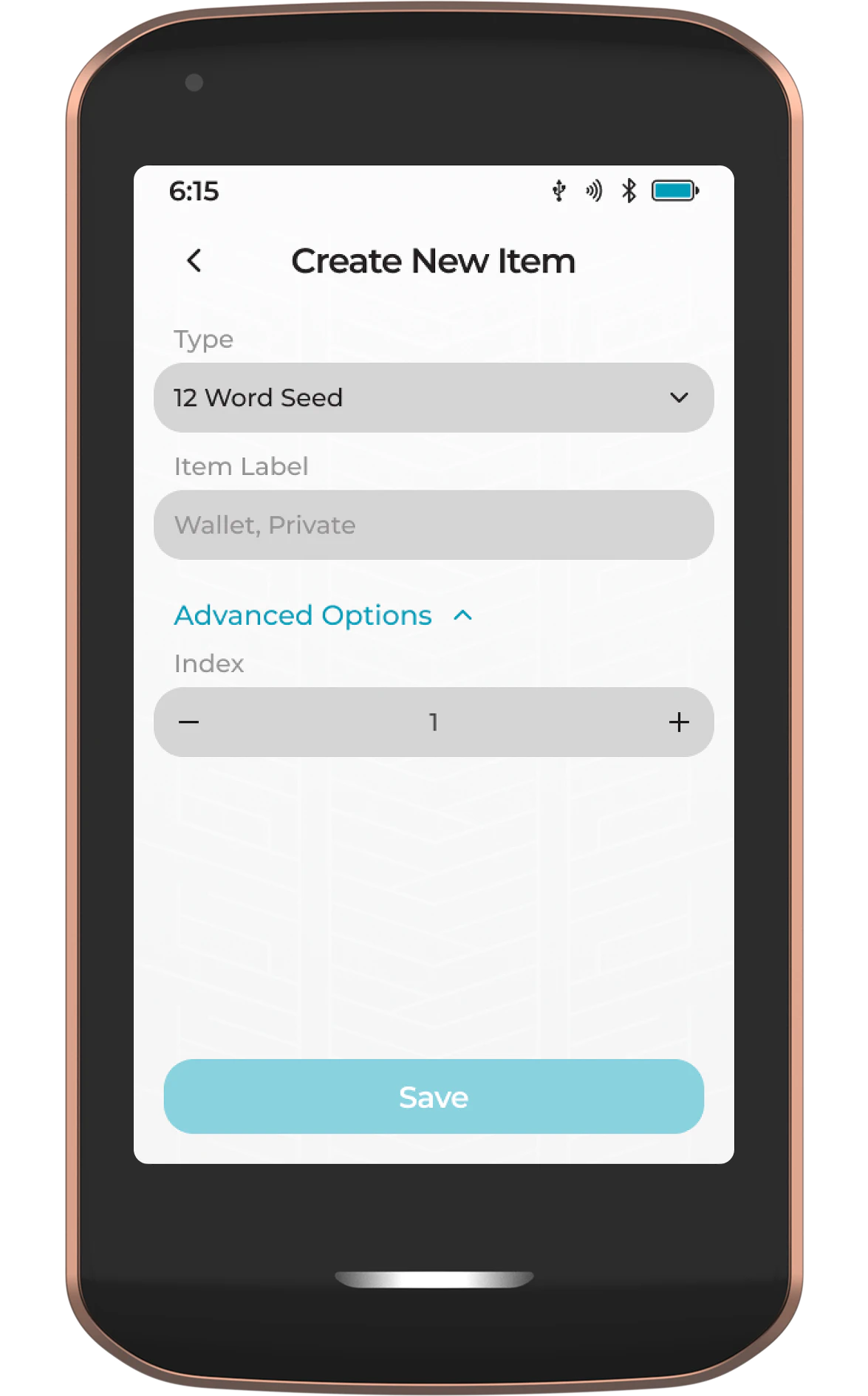
Tap New Item and Passport Prime will ask what item type you wish to add. You can choose between:
- 12 Word Seed
- 24 Word Seed
- Password
- Nostr Key
When choosing a Bitcoin key, Nostr key, or password, advanced users have the option to manually override the default index number under Advanced Options. If you don't understand what this is, we strongly recommend allowing Passport Prime to choose this for you. The default starts at 0 and will increment with each additional seed/key of this type and length.
Next, give the item a name. It's good practice to include the name or application of the key (e.g., Alice's Mobile Wallet or Mom's Nostr key).
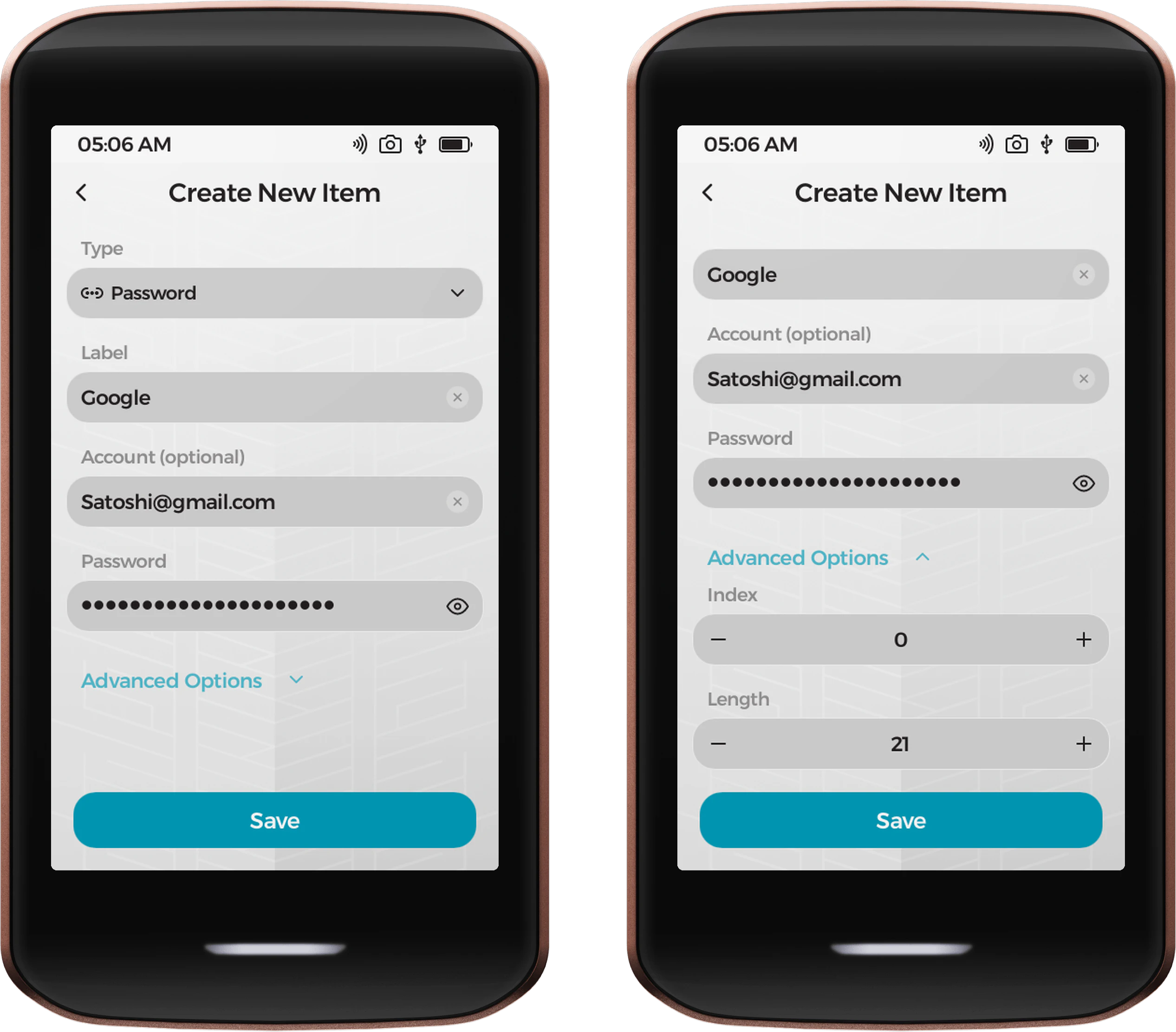
If choosing the Password option, you'll give the item a label and an optional Account (a username or email). Passport Prime then generates a strong password for you, deterministically derived from your Master Key, so there is nothing to type and nothing to remember. Under Advanced Options you can set the Length (default 21, between 10 and 80 characters) and the derivation Index.
The new item will then be saved to Passport Prime and displayed in the Vault. To add additional items, simply tap the three-dot menu icon and choose New Item.
Importing an Item
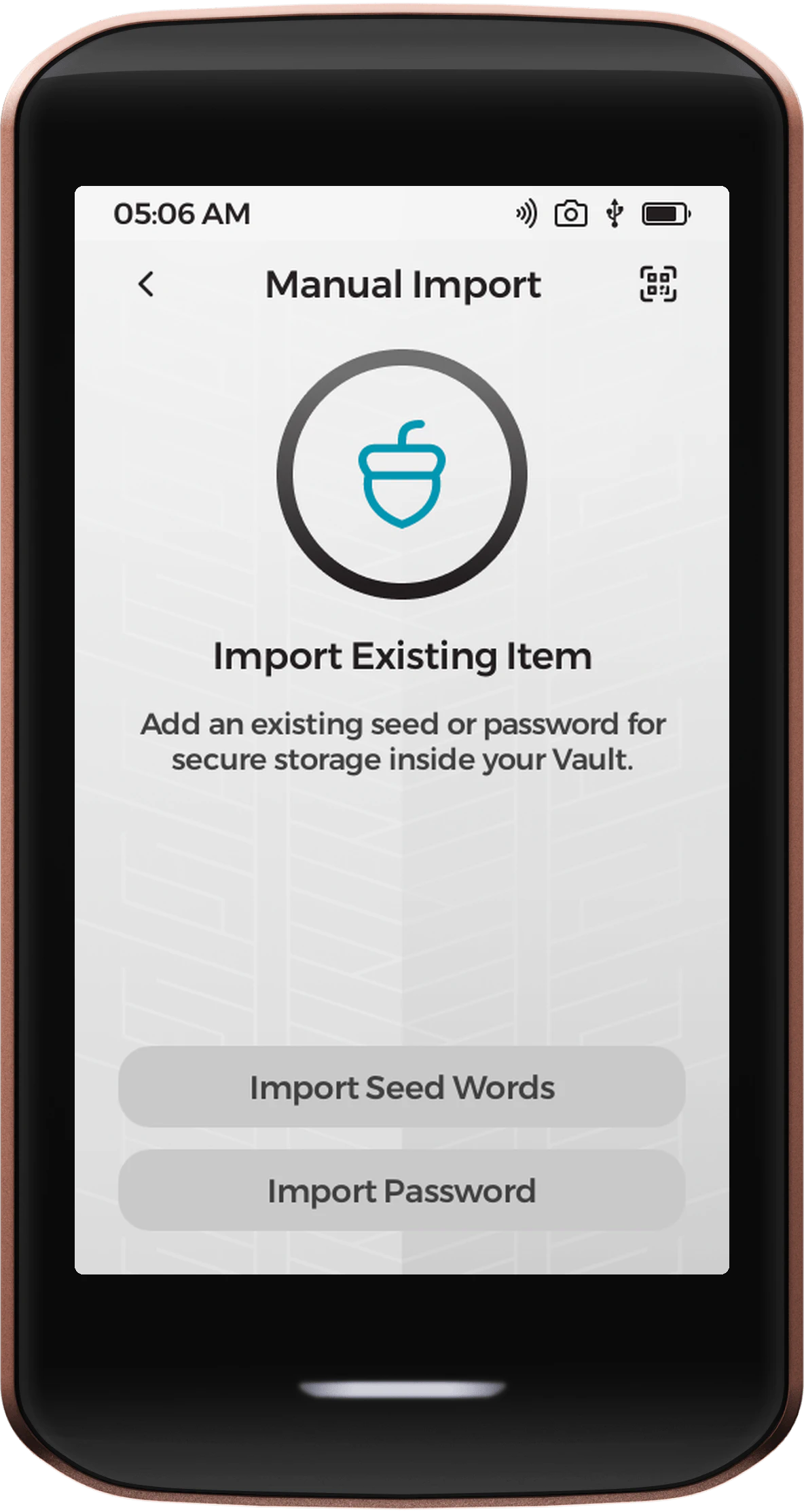
If you already hold a seed or password elsewhere, tap Import Item to bring it into the Vault. On the Import Existing Item screen you have two ways to proceed:
- Tap the scan icon in the top-right corner to import by QR code. Passport Prime reads the code and adds the item for you.
- Tap Import Seed Words or Import Password to enter the details manually.
Imported items are labeled Imported in your Vault, while items Passport Prime generates are labeled Generated from Master Key. This distinction matters when archiving, as covered below.
View/Manage Item
Tapping on any item will open the item details view where you can:
- View the item information, including its type, source, index, and fingerprint
- Edit the item label
- Change the item color
- Export the item to a file (to be added in an update post-launch)
- Archive the item
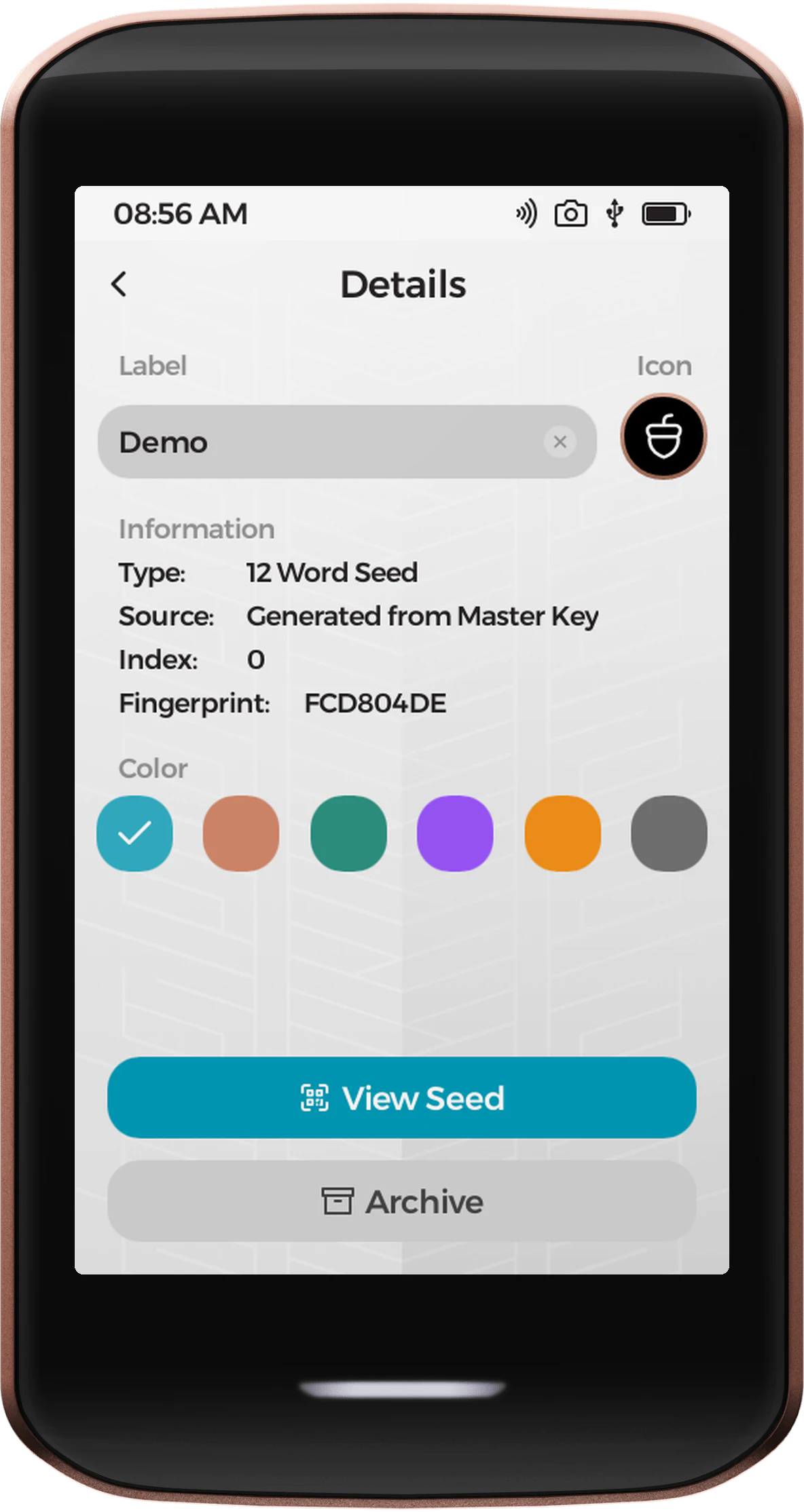
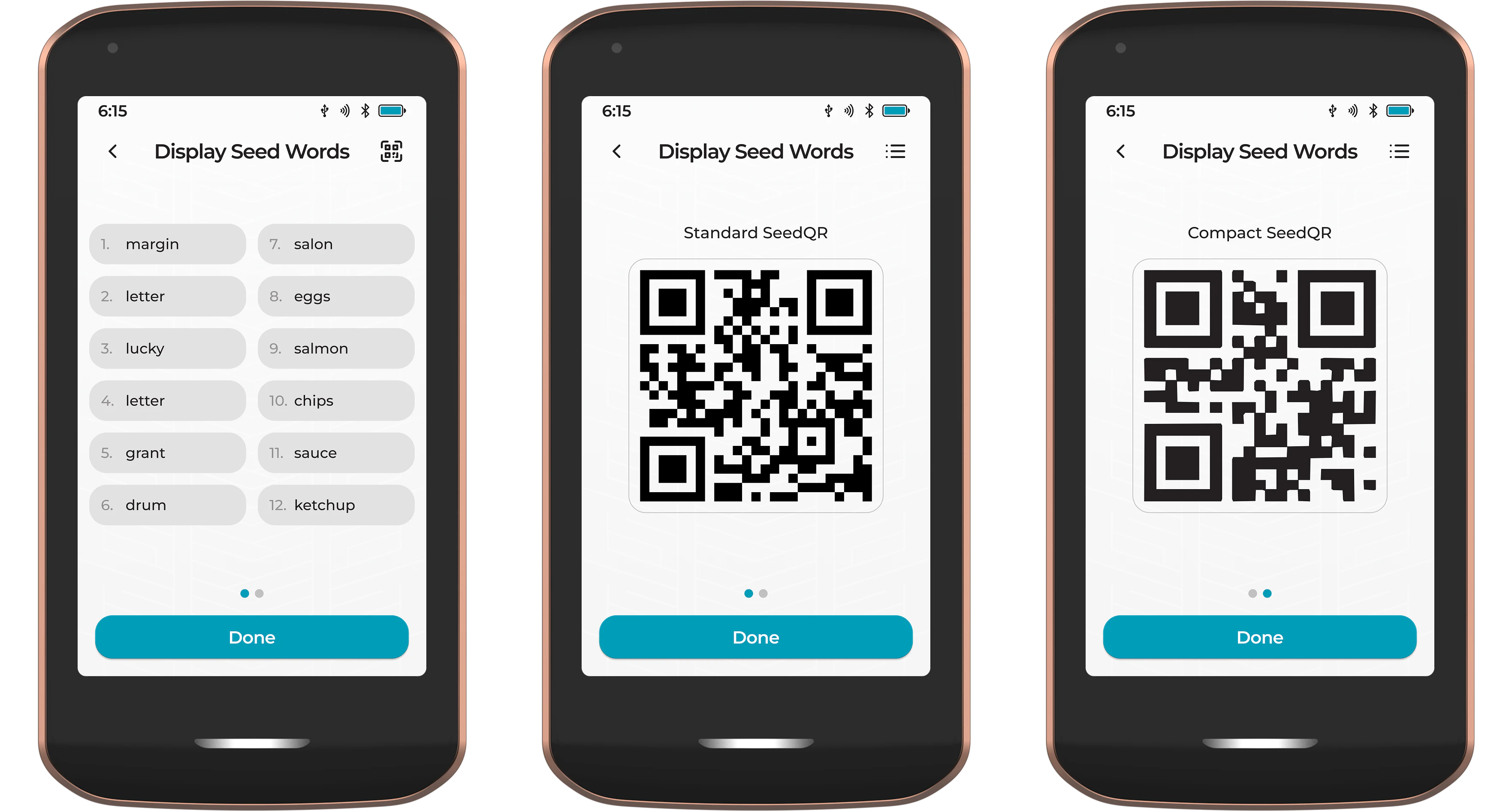
To view a Bitcoin seed or Nostr key, simply tap View Seed or View Key, respectively. When displaying a Bitcoin seed, Passport Prime will default to showing a list of 12 or 24 words, but these items can also be viewed in the SeedQR and Compact SeedQR formats by tapping the QR icon in the top right corner.
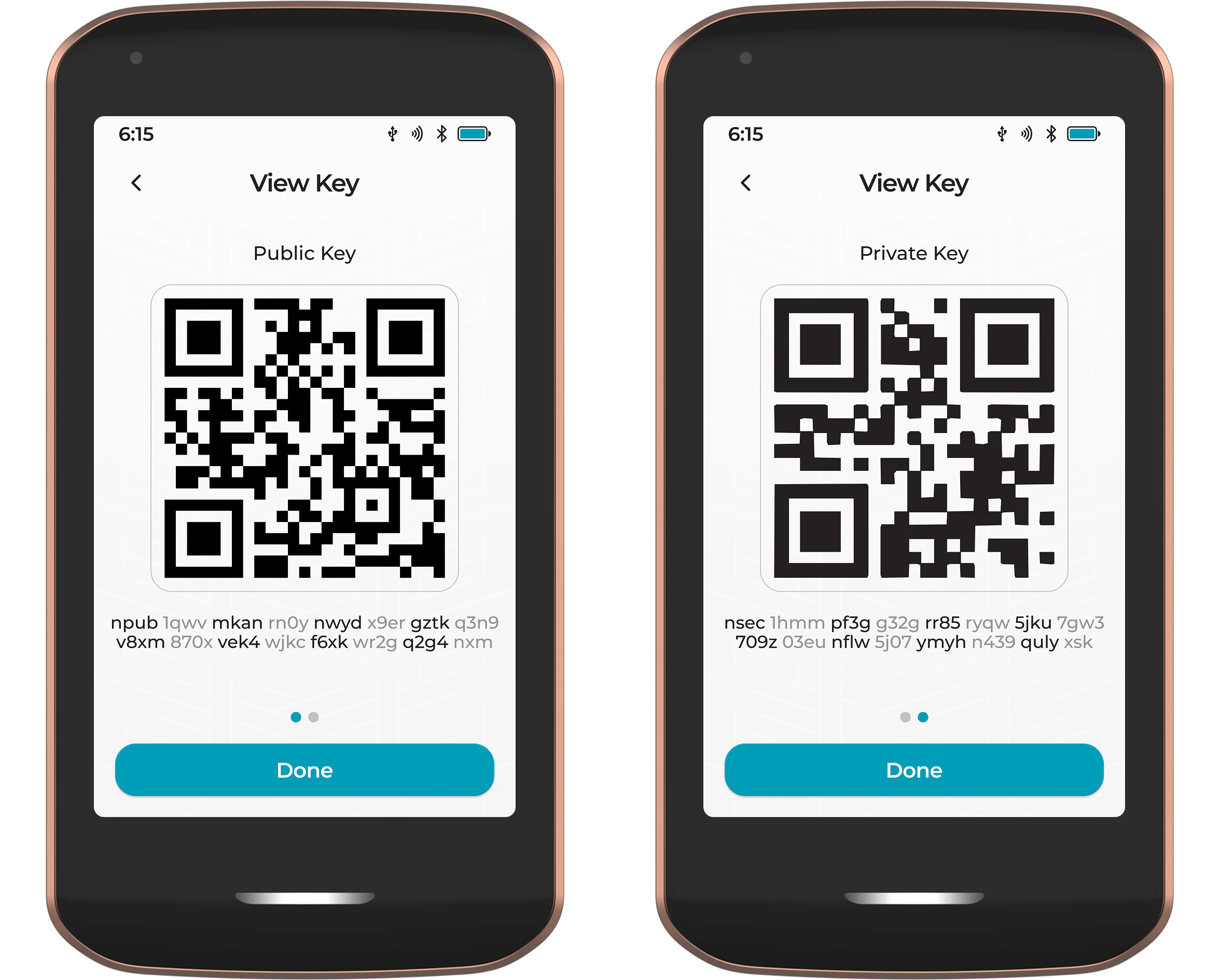
When displaying a Nostr key, Passport Prime will first display the public key (npub), followed by the private key (nsec).
Item Archive
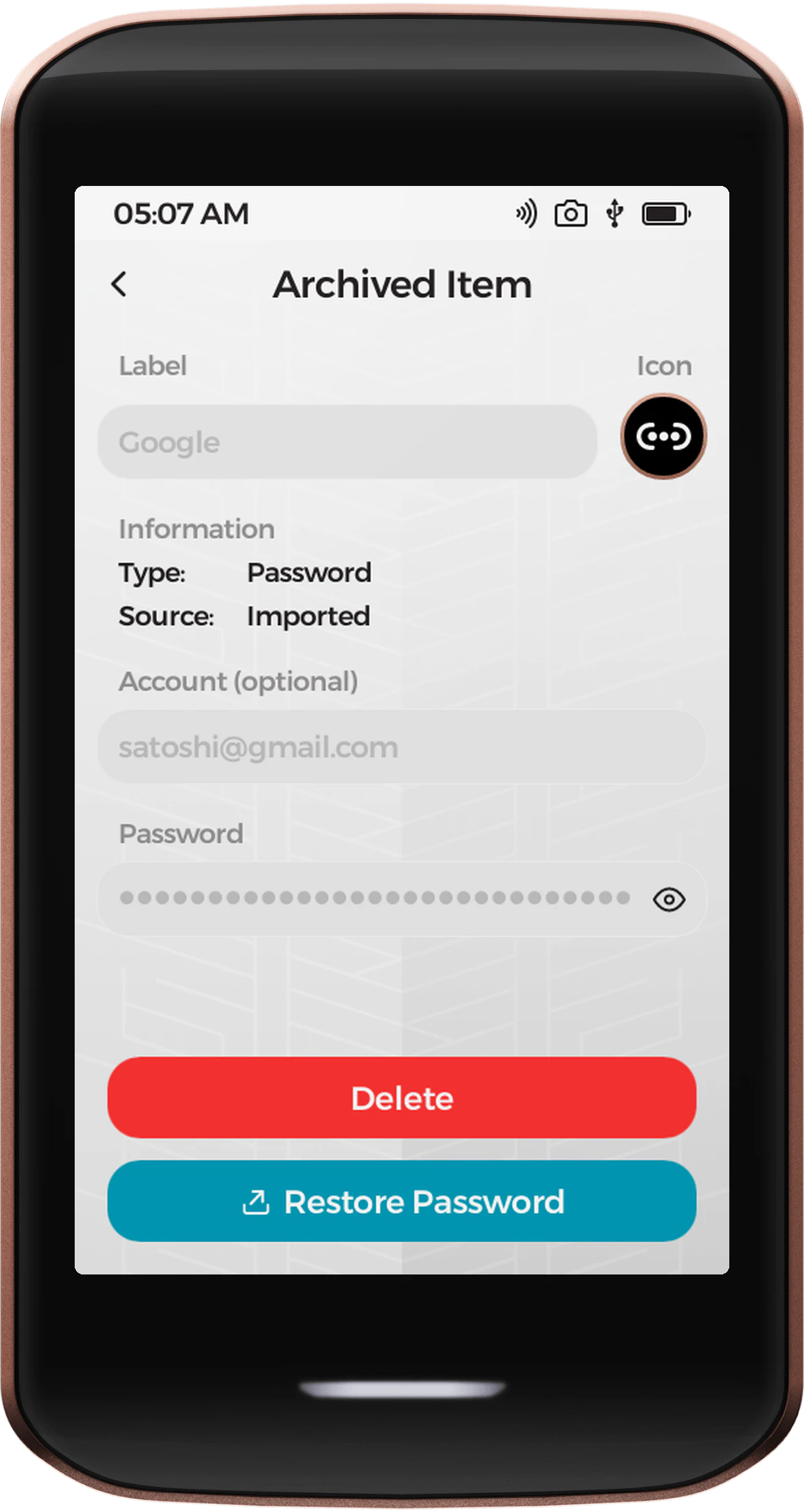
Accessed by tapping the three dots in the top right corner, followed by View Archive, the Vault Archive houses all items that are no longer in use and have been manually archived by the user.
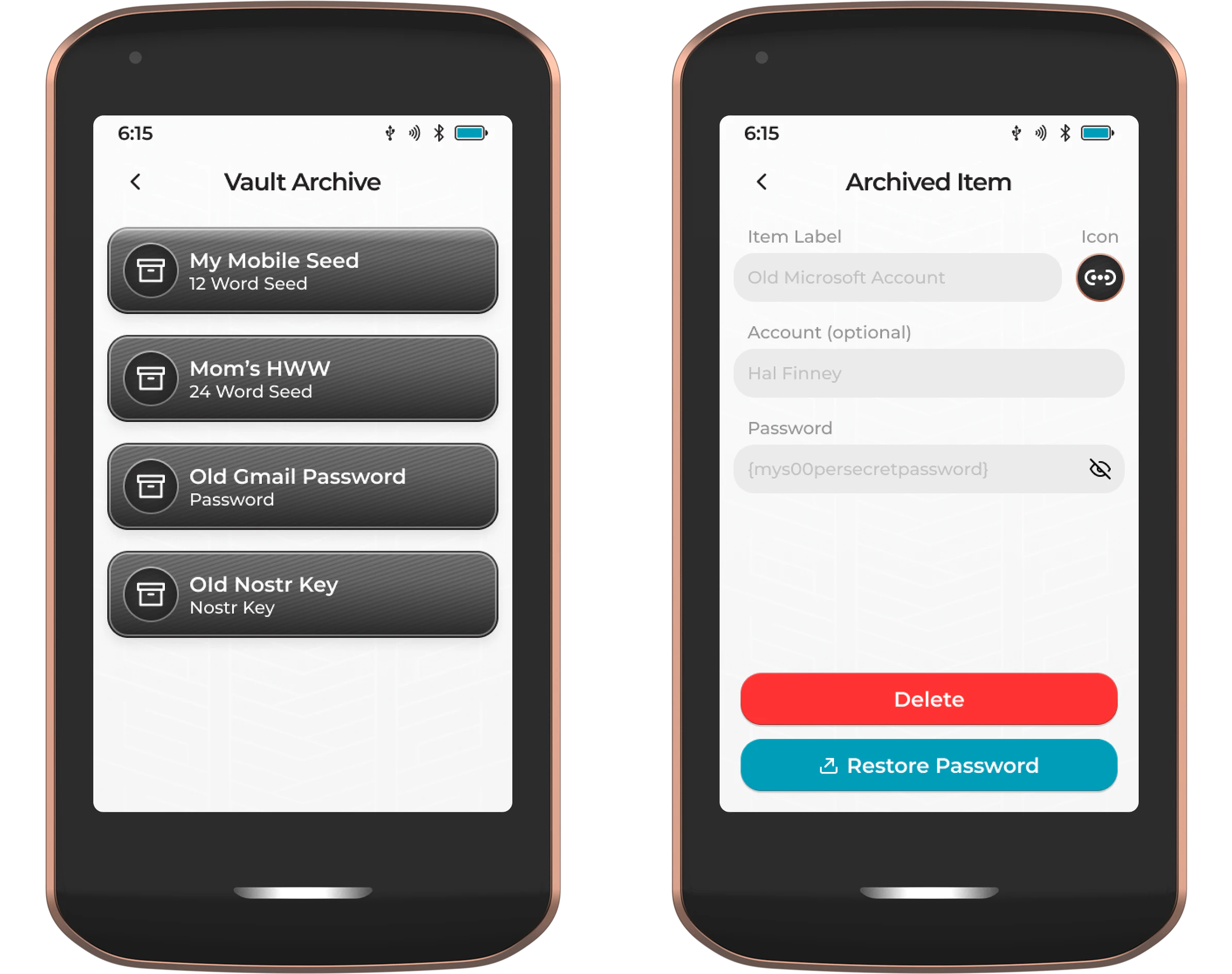
Items can be restored from the archive at any time by tapping on the item, followed by Restore. Imported items can also be permanently deleted by tapping Delete and confirming. This cannot be undone, so make sure you have a backup first. Items that Passport Prime generated cannot be deleted, because they can always be re-derived from your Master Key.