Accessed by tapping the gear icon in the dock at the bottom of the Passport Prime home screen and then tapping Apps, the Apps screen is where you install third-party apps and control which publishers you trust.
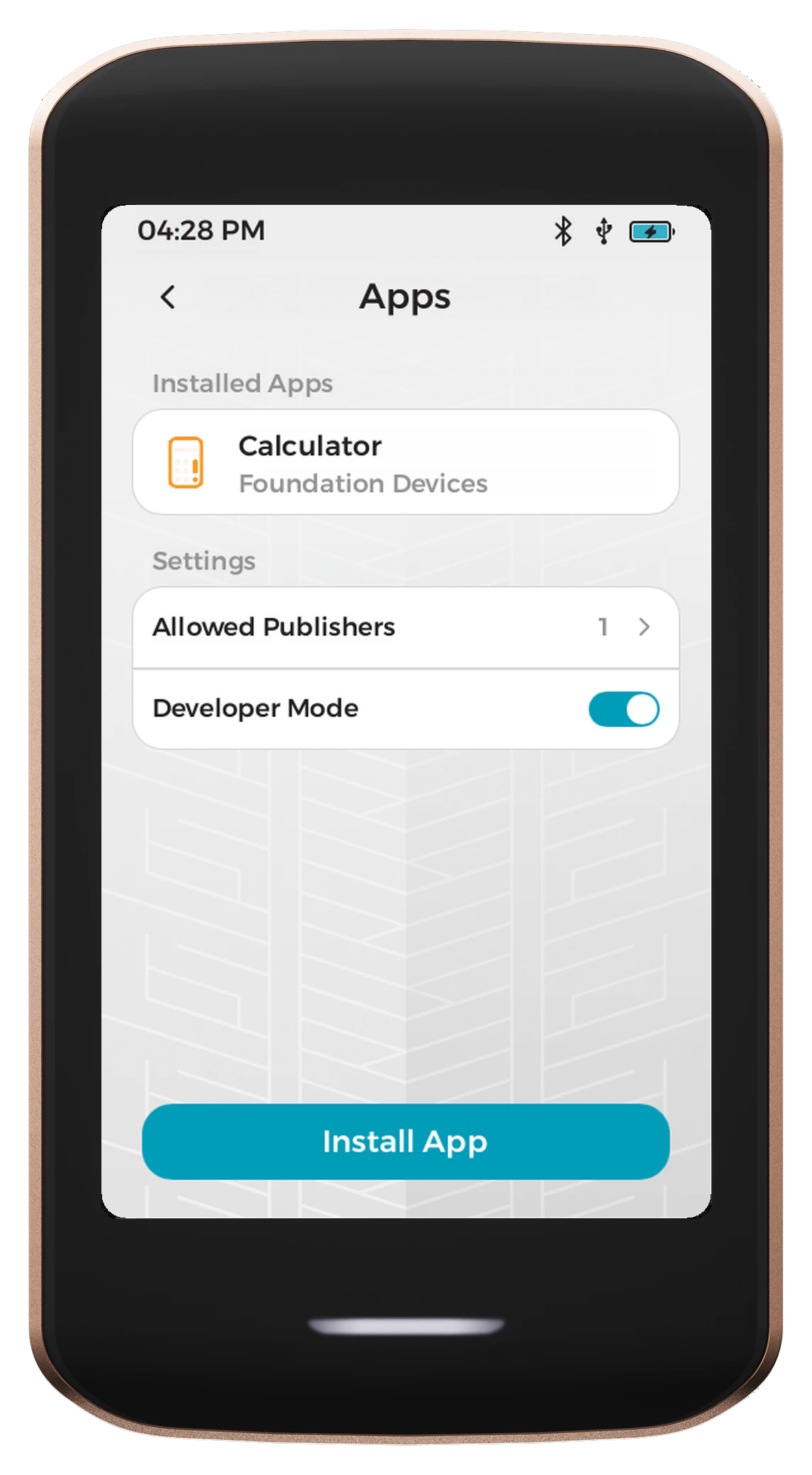
Installed Apps
Third-party apps you have installed are listed at the top of this screen, each with its publisher underneath. Apps built by Foundation, such as the Bitcoin Wallet, Vault, Keys and 2FA, are part of KeyOS and are not listed here.
Allowed Publishers
Passport Prime will only run a third-party app if you have chosen to trust the publisher that signed it. Publishers are managed from this screen.
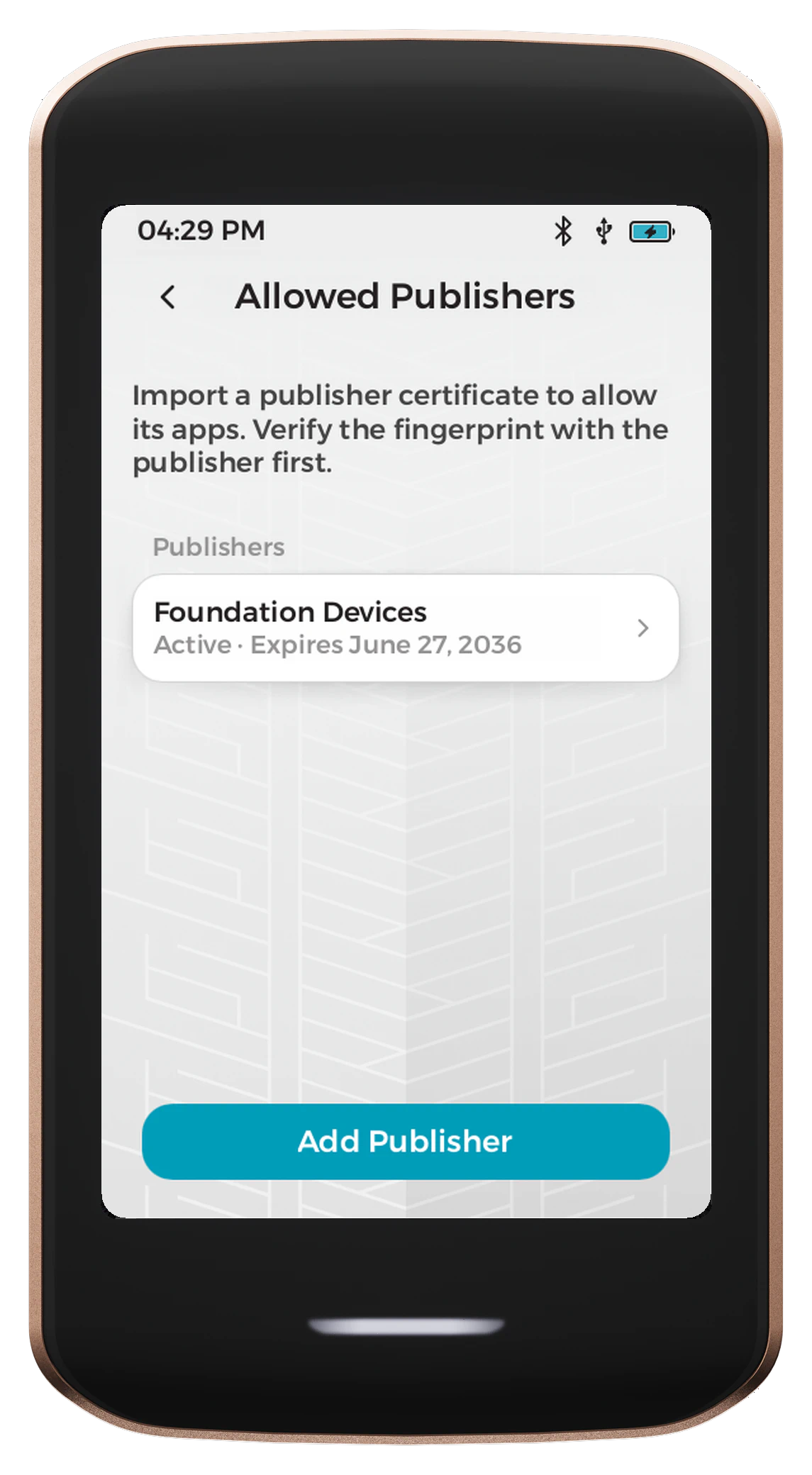
Tap Add Publisher to import a publisher certificate. As the screen itself says, verify the fingerprint with the publisher before adding them. A publisher certificate is the developer's signing identity, so trusting one means trusting every app that developer signs, both now and in the future.
Tapping a publisher opens its details, including the full fingerprint, the status, when it was added, and when the certificate expires.
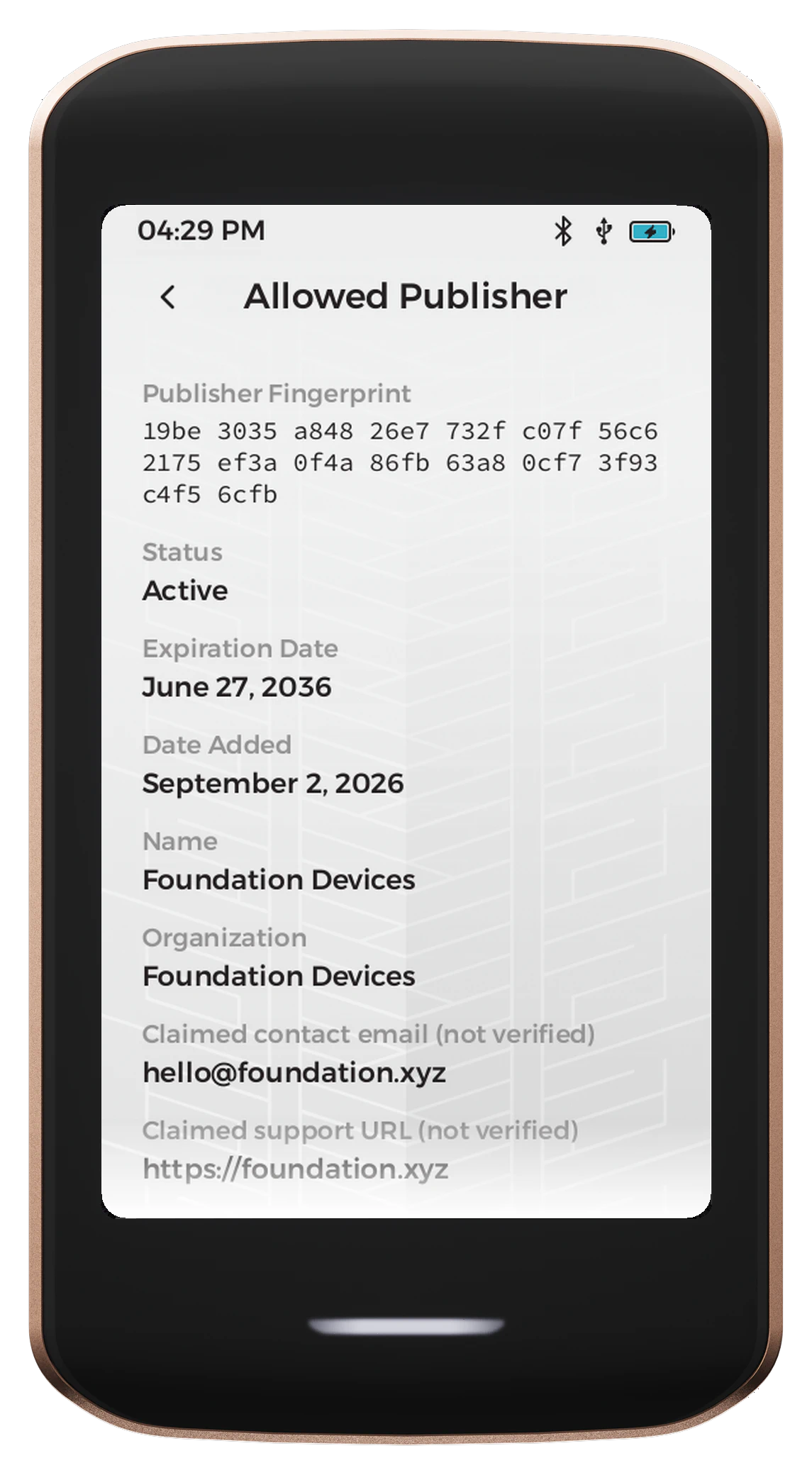
The contact email and support URL on this screen are marked not verified for good reason. They are claims made by whoever created the certificate, and Passport Prime has no way to check them. The fingerprint is the only field that identifies a publisher, so confirm it through a channel you trust rather than relying on the name or contact details shown here.
Installing an App
Tap Install App at the bottom of the Apps screen. Passport Prime opens the file picker so you can choose the app bundle from your Internal storage, the Airlock, or connected USB storage.
Installing Foundation's Legacy Mode and its coin apps requires a specific order. Follow the Legacy Mode installation guide for the complete download, Airlock transfer and setup process.
Choosing which publishers to trust is your decision, and Foundation does not review apps published by anyone else. You are not relying on that judgement alone, though. KeyOS runs every app in its own kernel-enforced sandbox, so an app cannot read another app's memory or storage, and it has no route to your master key, your PIN, or your backups. On top of that, the capabilities that matter are yours to grant individually, as described in Permissions below. Verify a publisher's fingerprint before you add them, then decide what each of their apps is allowed to do.
App Details
Tapping an installed app opens its details. Alongside the version, size and description, this screen shows the fingerprint of the publisher that signed it, the app ID, and the hash of the app itself, so you can confirm you are running the build you expect.
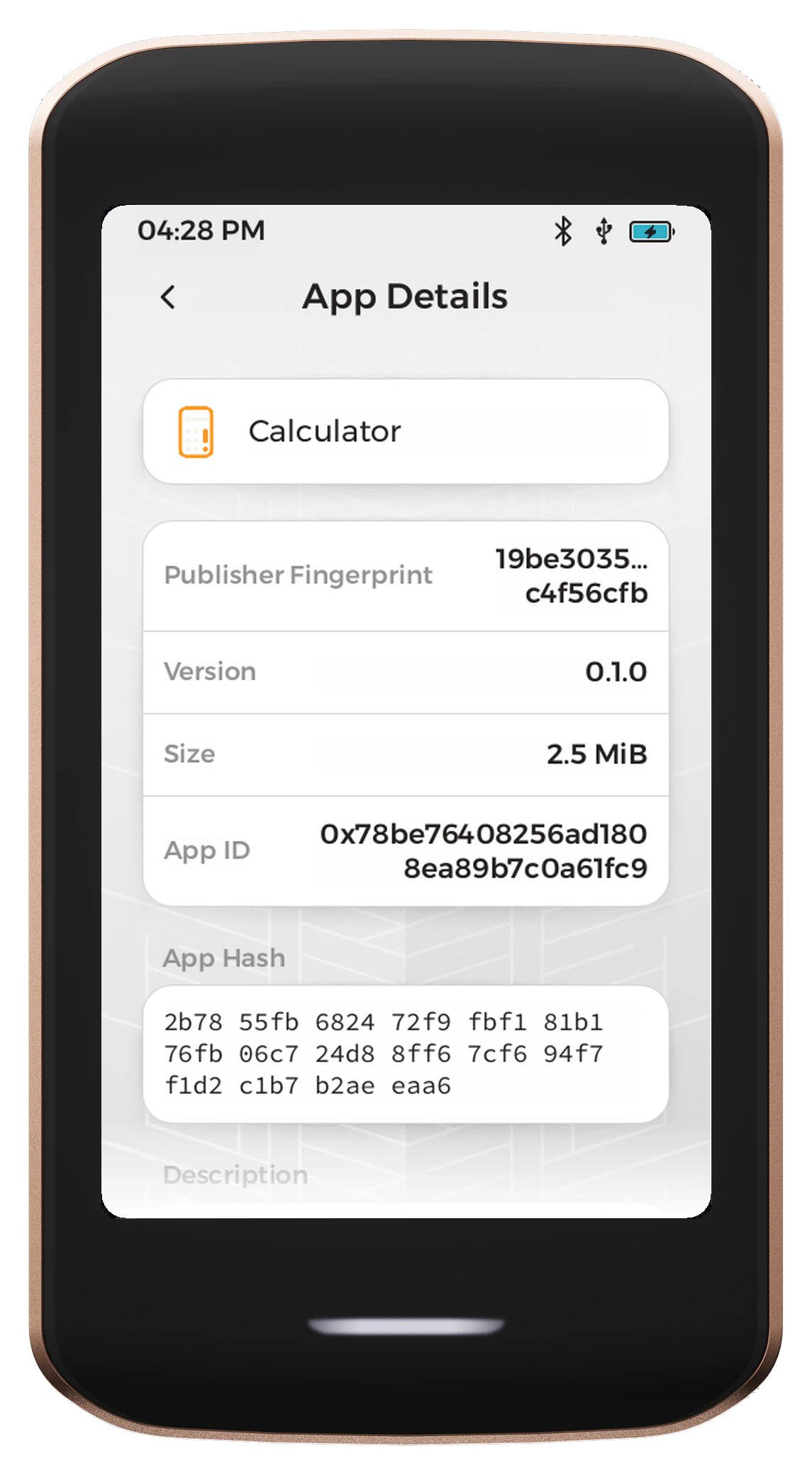
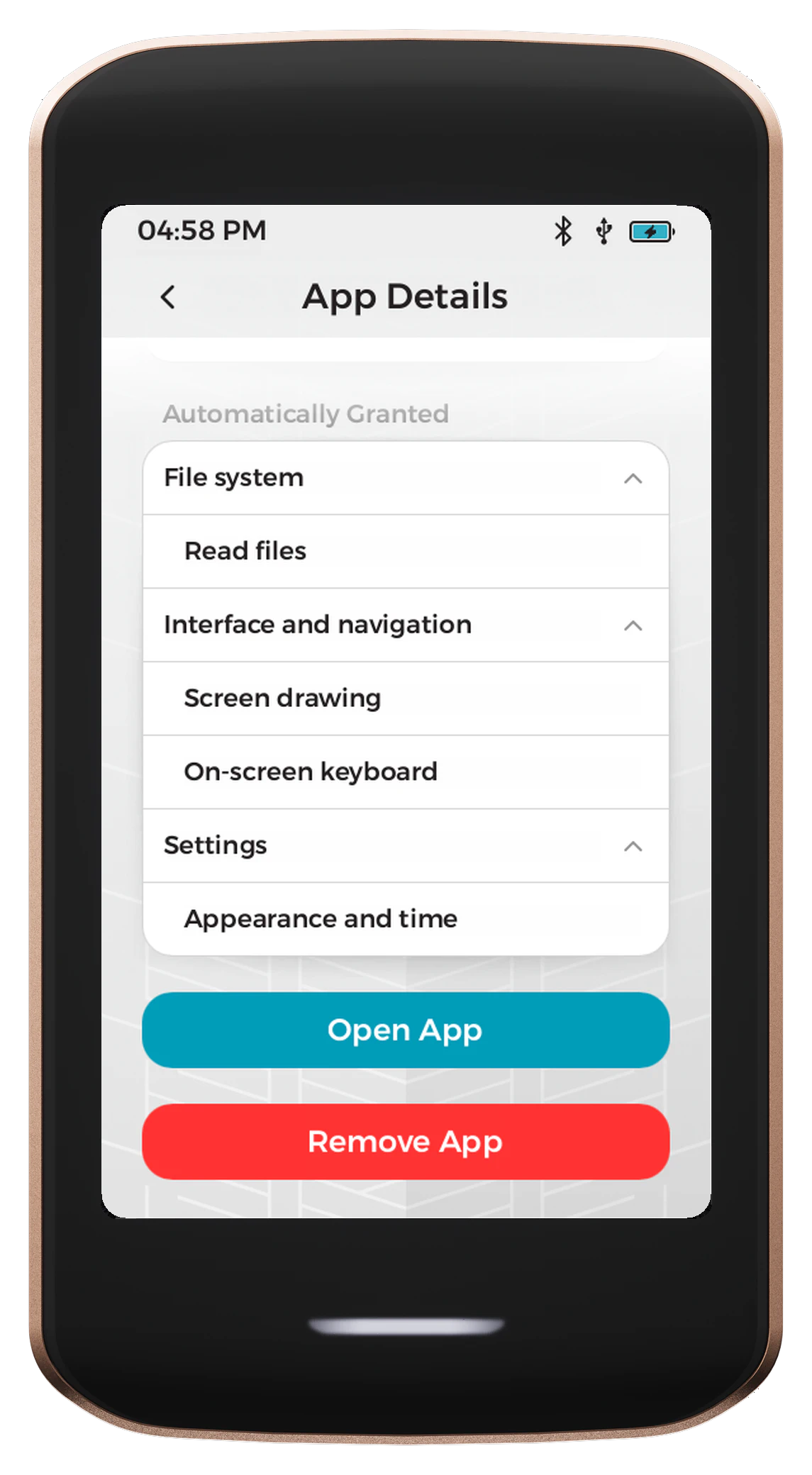
Open App and Remove App sit at the bottom of the same screen.
Permissions
Further down the App Details screen, the capabilities an app uses are split into two groups.
Requested Permissions are the ones you control. Each has a toggle, and each is off until you turn it on, so an app cannot reach these simply by asking.
Automatically Granted covers the everyday capabilities an app needs to function at all, such as drawing to the screen, using the on-screen keyboard, or following your appearance and time settings. These are listed so you can see exactly what an app has, even though there is no decision to make.
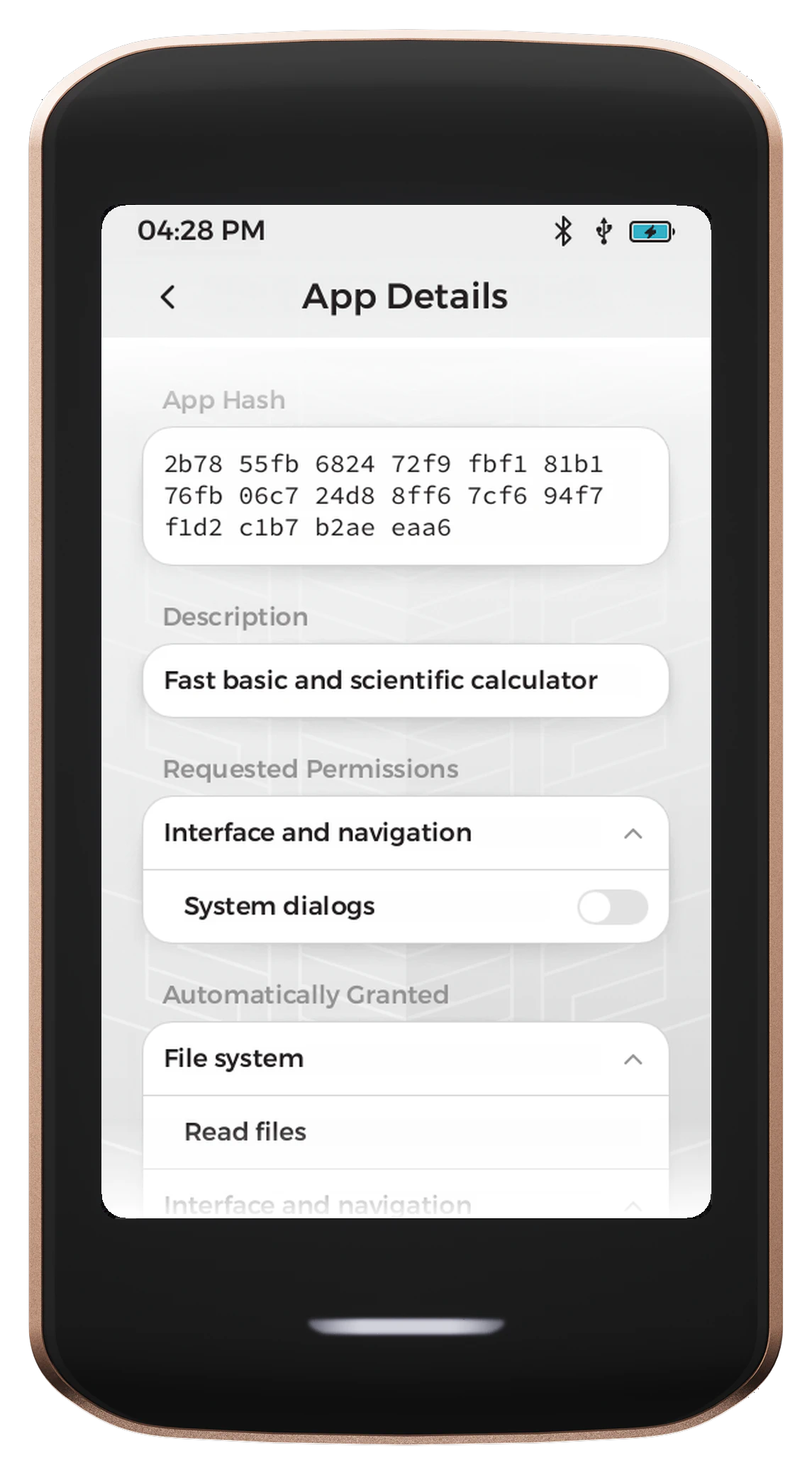
A number of capabilities are reserved for apps signed by Foundation and cannot be granted to a third-party app at all, including NFC read and write, access to your PIN or master seed, device backups, and Keycard transfers. Developers can read the full breakdown in the Capability Matrix .
Developer Mode
Developer Mode is also toggled from this screen. It allows a computer running the Foundation SDK to build, sign and load apps onto Passport Prime over USB. Leave it off unless you are actively developing, and see the Developer documentation to get started.