Passport Prime can easily replace all of your encrypted flash drives with its 50GB of dedicated storage capacity. The Files app on Passport Prime provides a secure and intuitive way to store and manage your most important files. Common file types such as documents, images, videos, PDFs and text files are all supported.
Files are not part of Magic Backups. Anything you store in Internal or Airlock lives only on your device. If Passport Prime is lost, damaged, or wiped, those files cannot be recovered through Magic Backups or by reconstructing your Master Key. Treat Passport Prime as a secure offline copy, not the only copy, keep a separate backup of anything you can't afford to lose.
Areas of the Files App
The files app is split into three main areas:
- Internal - The internal file storage of the device.
- Airlock - Also internal storage, the Airlock is the only area visible to external devices like your phone or computer when Passport Prime is connected to them.
- External - The file system of any external storage media plugged into Passport Prime via its USB-C port.
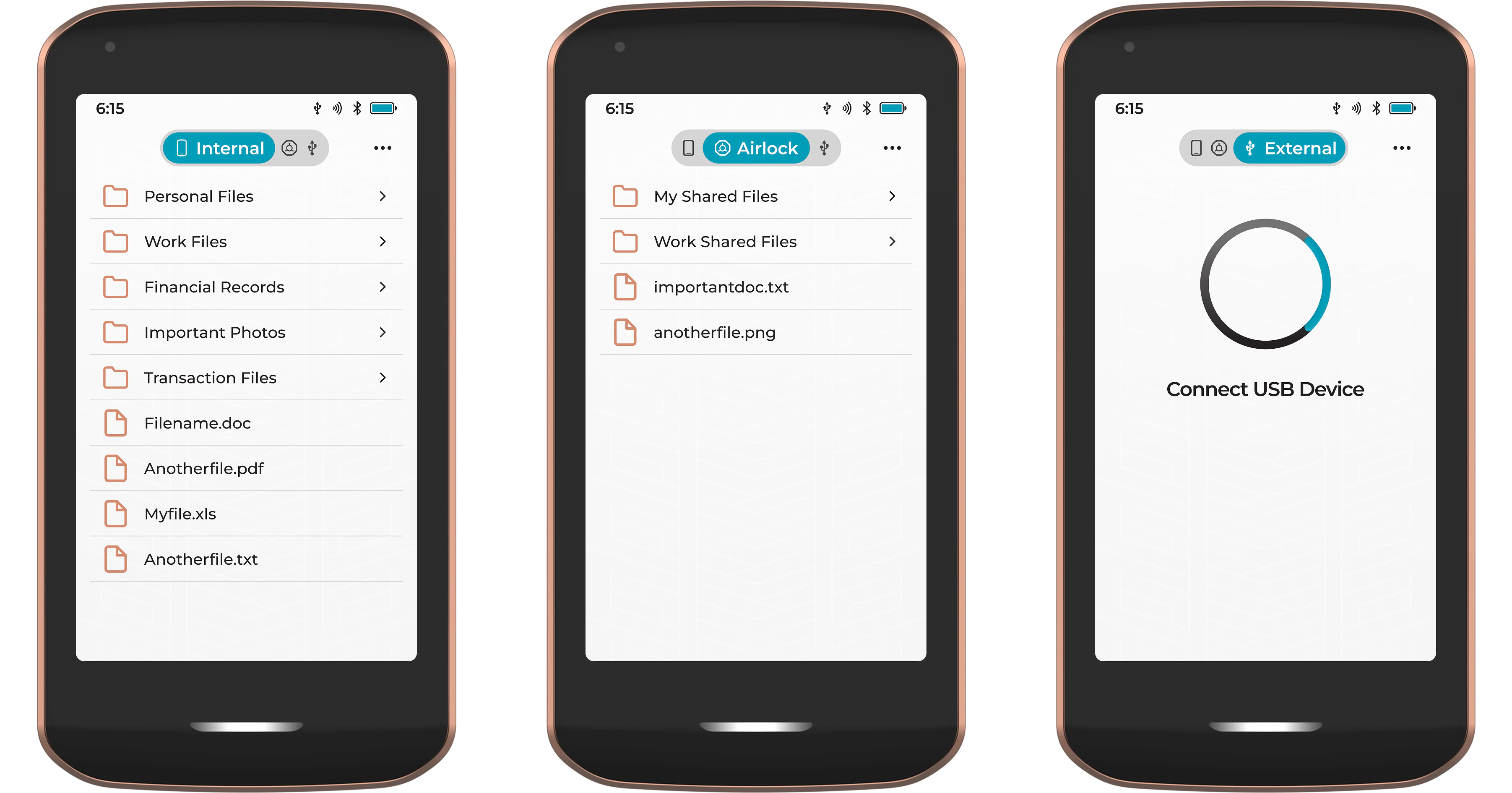
Internal
This is where most of your secure files should be stored. All files in the internal storage are hardware-encrypted and only unlock with your device PIN or password. Access requires physical possession of Passport Prime, there is no remote unlock path.
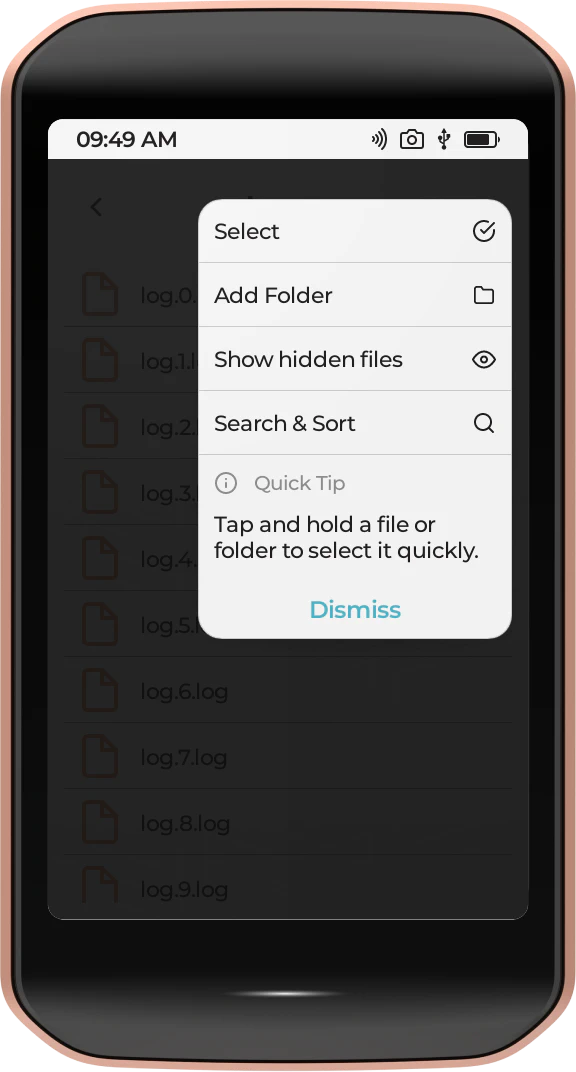
Files can be managed into folders and sorted alphabetically, by file size, or by date added, simply by tapping the three dots in the top right corner.
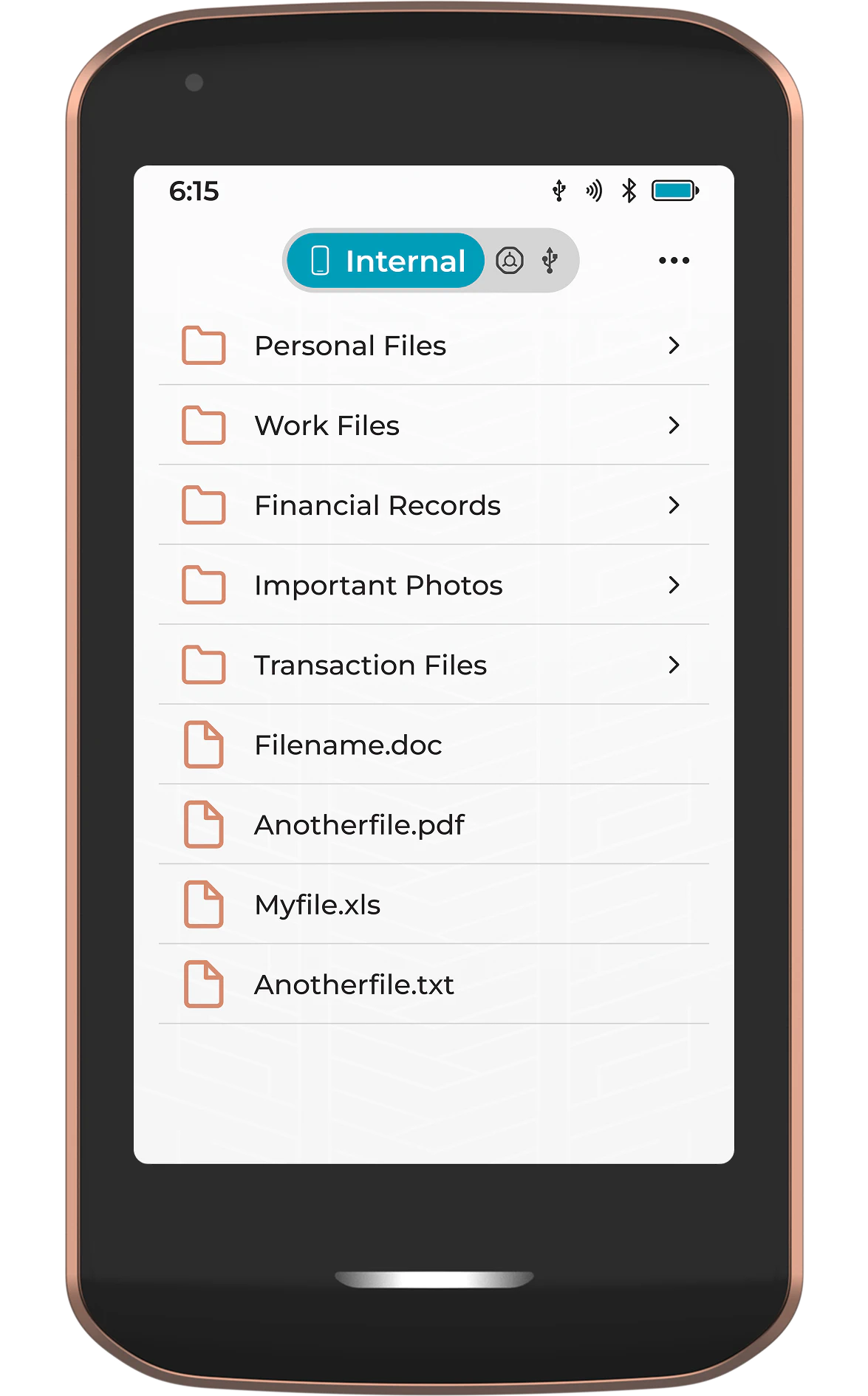
Airlock
The Airlock is a segregated part of Passport Prime's internal storage. Think of it like an actual airlock, a secure buffer zone that separates the outside world from the secure interior. It is the only part of the storage that is visible and accessible to external devices such as your phone or computer, when you physically plug Passport Prime into one of them via the USB-C port.
This is particularly useful so you can ensure that external devices only have access to the files you choose when performing transfers.
As with the main internal storage, files inside the Airlock can be managed into folders and sorted alphabetically, by file size, or by date added, simply by tapping the three dots in the top right corner.
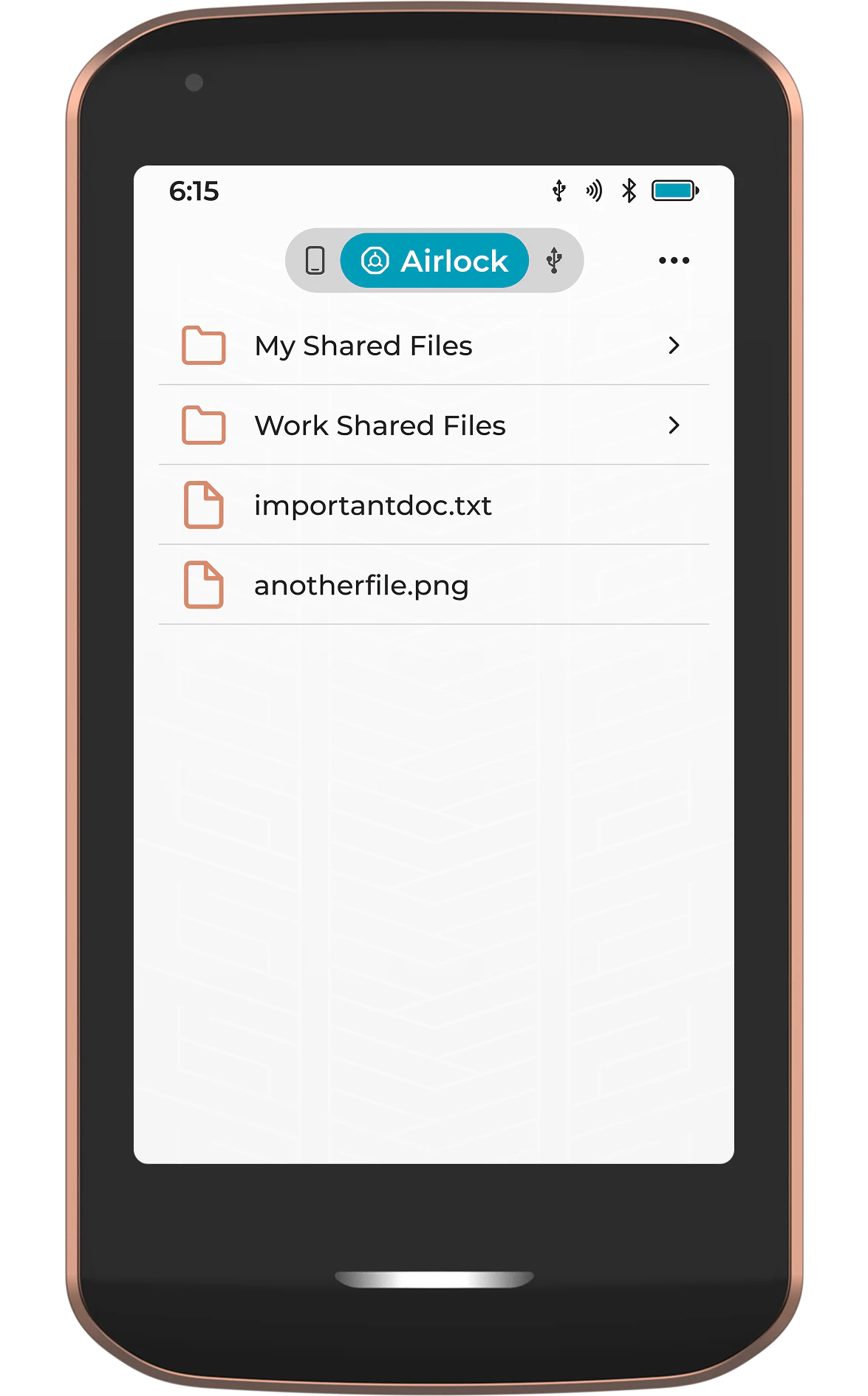
When you connect Passport Prime to a computer over USB, the Airlock is shared as read-only by default. The computer can open and copy files out of the Airlock, but it cannot write to it, which protects your device from unwanted changes. If you need to copy files onto the Airlock from the computer, tap the three dots in the top right and choose Airlock Read and Write. For safety, the Airlock returns to Airlock Read Only automatically every time you disconnect.
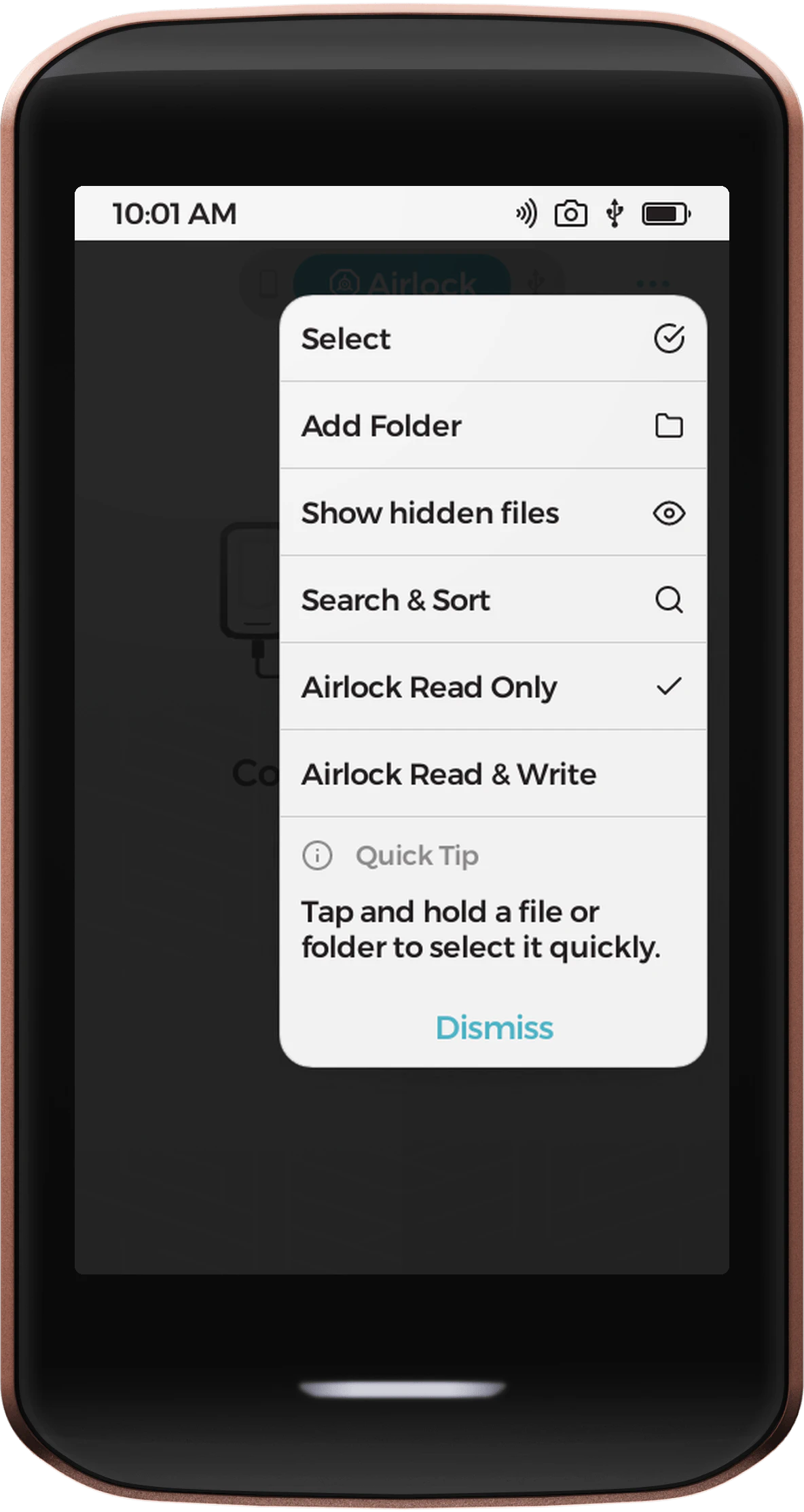
External
The external part of the Files app shows the folders and files contained within any external storage media plugged into the USB-C port on Passport Prime. This could be a USB flash drive, a microSD card, or even your phone or computer. It is from this part of the Files app that you would choose the files you want to import to Passport Prime's internal storage.
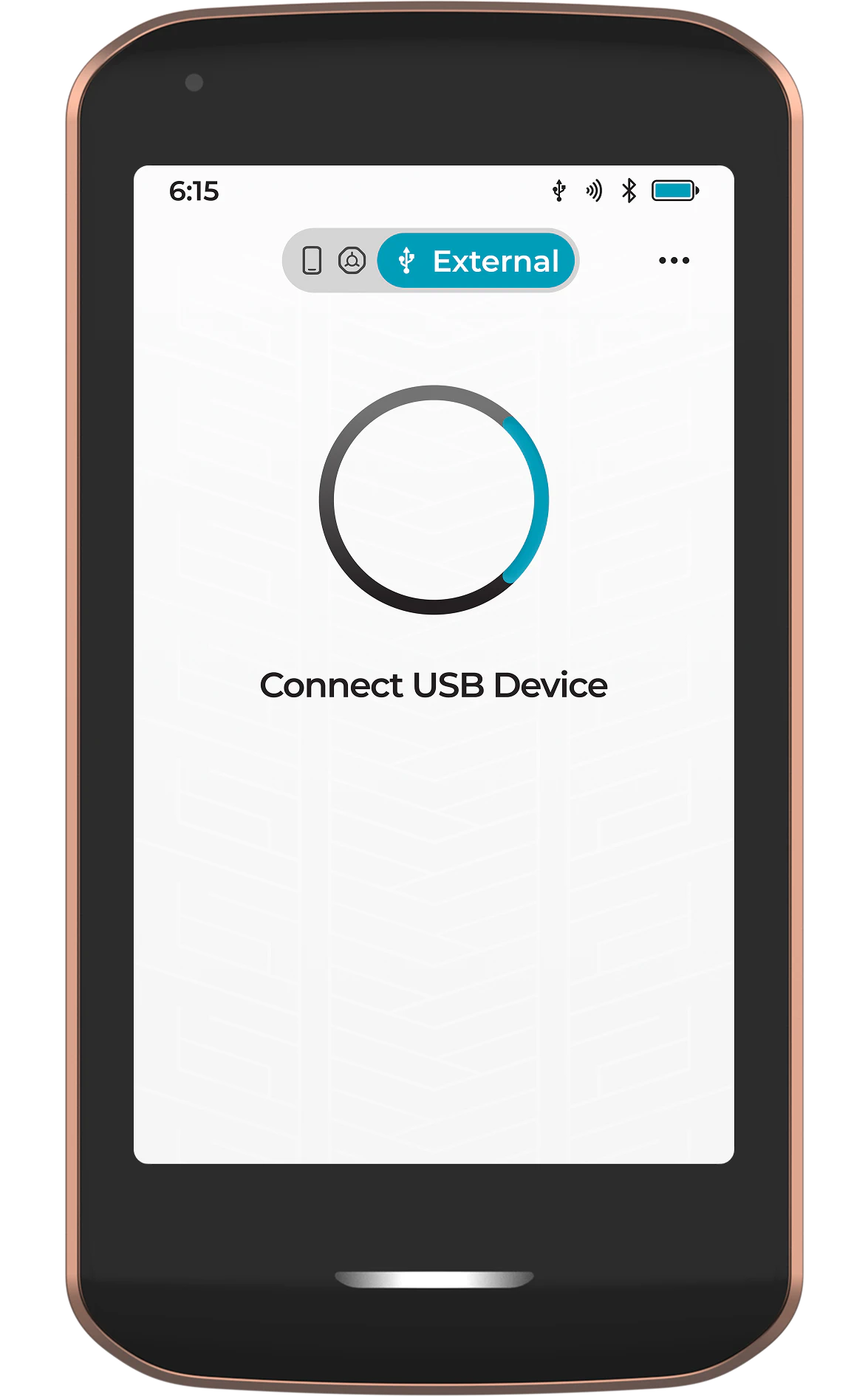
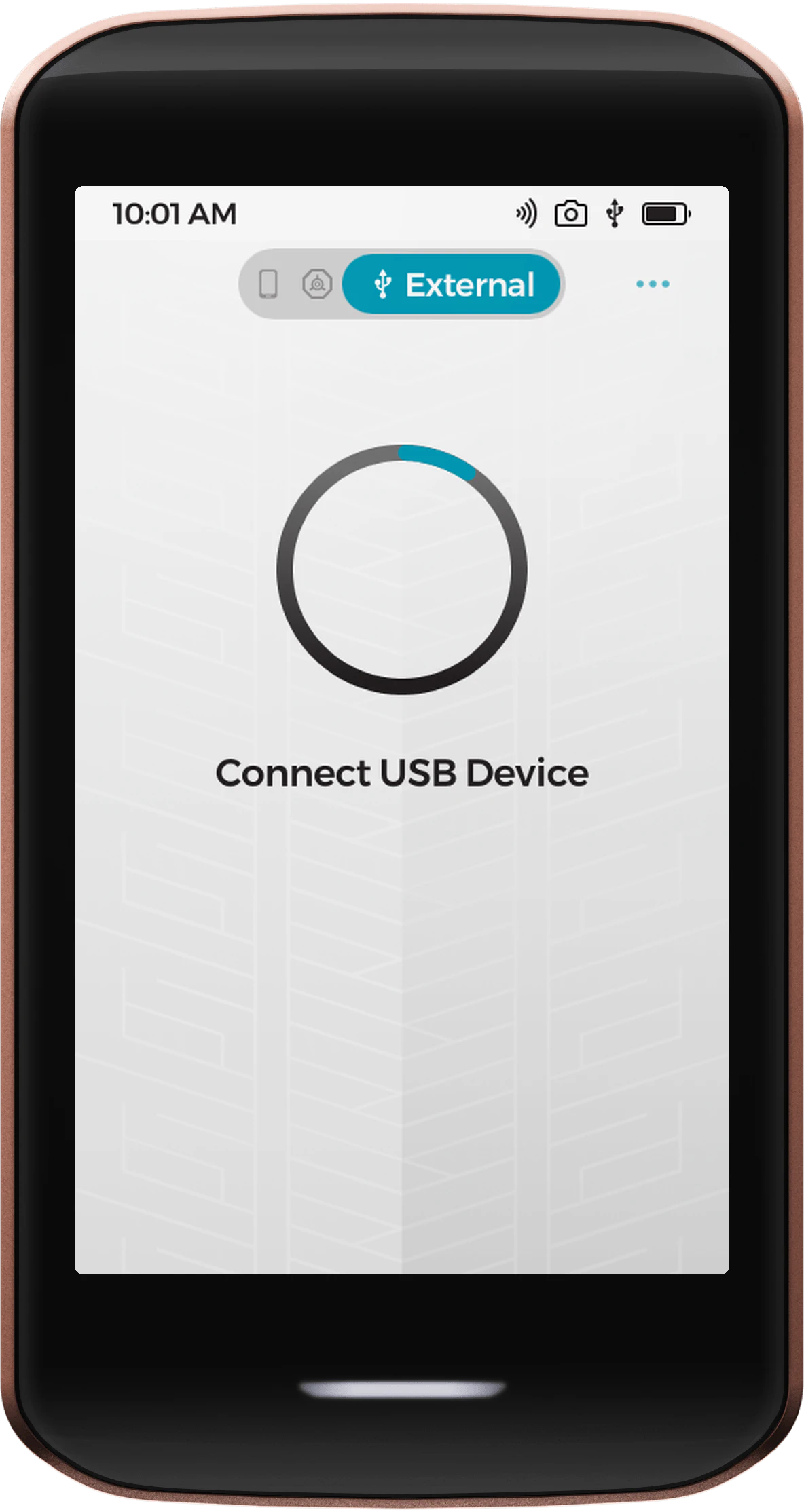
When no external storage is connected, this tab shows a Connect USB Device prompt. If you plug in a drive that Passport Prime cannot read, it will offer to Format External Storage so it can be used. Formatting permanently erases everything on the drive, so back up anything important first.
Moving Files
The following steps are for moving files between areas of the Files app, but the same steps can be used to duplicate files by changing Move to Copy/Paste. Please note that files can only be moved to and from the Airlock when Passport Prime is not connected to an external device like a computer. If you try while connected, Passport Prime will let you know that files cannot be moved to the Airlock over USB.
To/From the Airlock
To move files into the Airlock from the internal storage:
- Ensure the Internal tab is selected
- Tap the three dots in the top right, then choose Select
- Tap the gray circle next to each file or folder you want to move
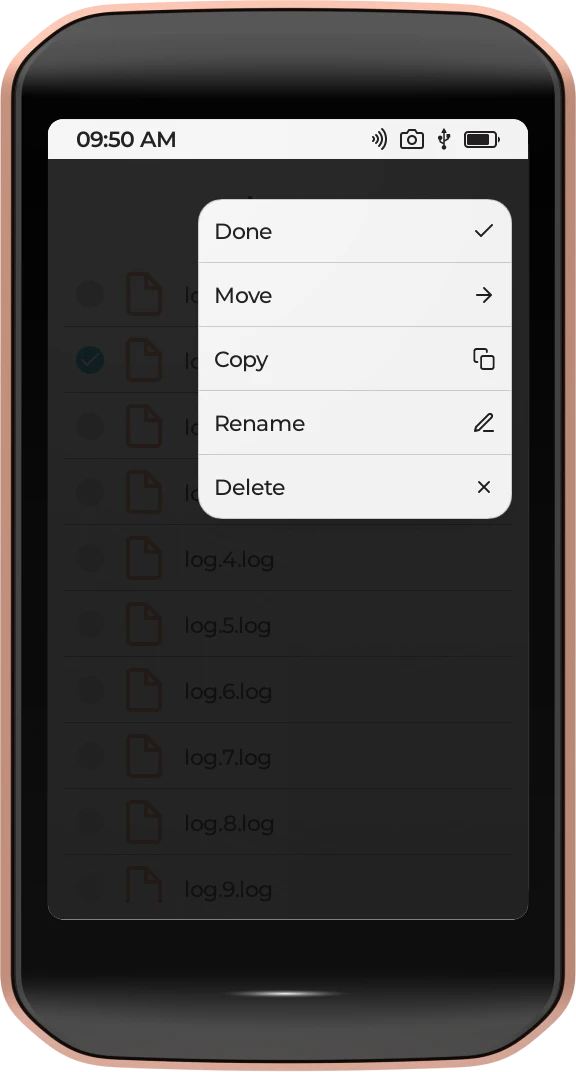
- Tap Move
- Select the Airlock tab
- Tap Move here
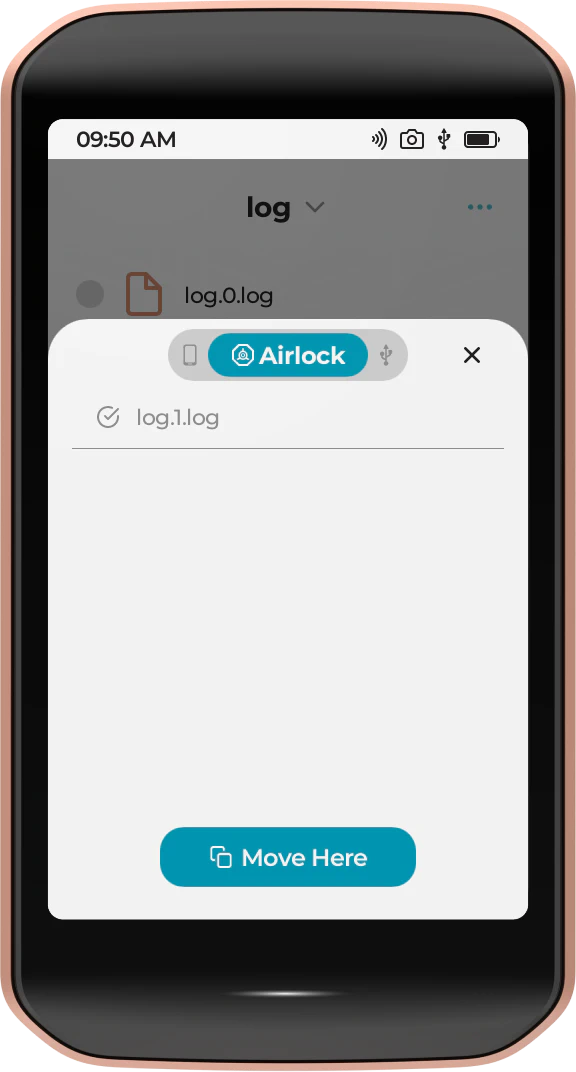
To move files from the Airlock to the internal storage:
- Ensure the Airlock tab is selected
- Tap the three dots in the top right, then choose Select
- Tap the gray circle next to each file or folder you want to move
- Tap Move
- Select the Internal tab
- Tap Move here
To/From External Storage
Repeat the steps listed above, but replace Internal or Airlock with External and your chosen location to move the files to or from.
Managing Files
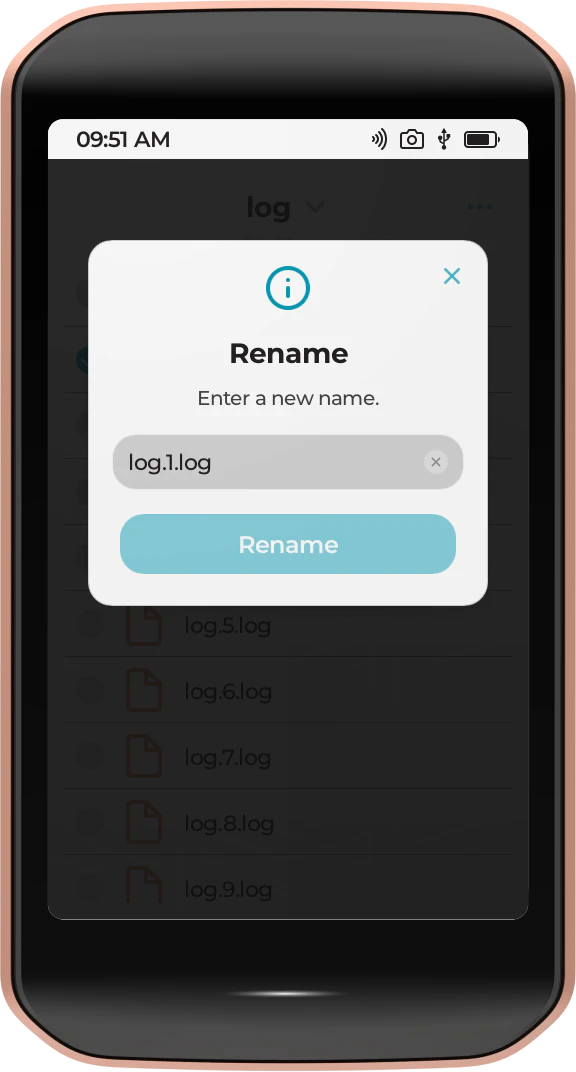
Rename
To rename a file or folder, long press on it, then tap Rename. Enter the new name and tap Save.
Delete
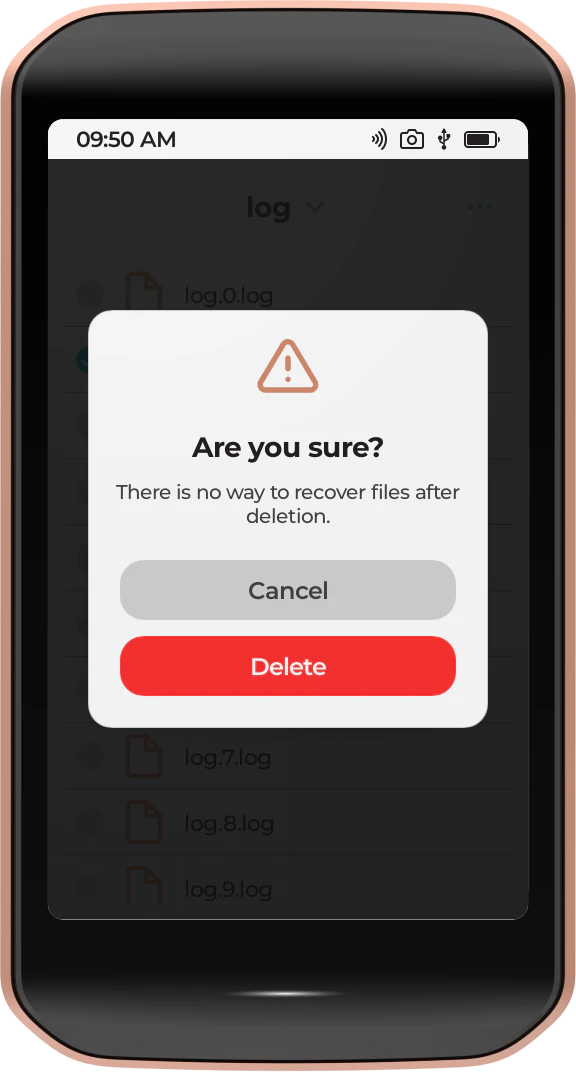
To delete files or folders, tap the three dots in the top right corner, then choose Select. Tap the gray circle next to each item you want to remove, then tap Delete.
Repairing a Damaged Airlock
In rare cases the Airlock filesystem can become corrupted. If this happens, opening the Airlock tab displays a message that it needs to be formatted, along with a Format Airlock button. Tapping Format Airlock asks you to confirm, since formatting permanently erases everything inside the Airlock. Once you confirm, Passport Prime reformats the Airlock and it is ready to use again.
Formatting the Airlock permanently erases all files inside it, and this cannot be undone. Do not turn off the device while formatting is in progress.