Keycards hold your Passport Prime Master Key, the secret behind everything on your device, so you can restore it if your Passport Prime is ever lost, damaged or reset. Passport Prime ships with three Keycards, each in its own Faraday sleeve.
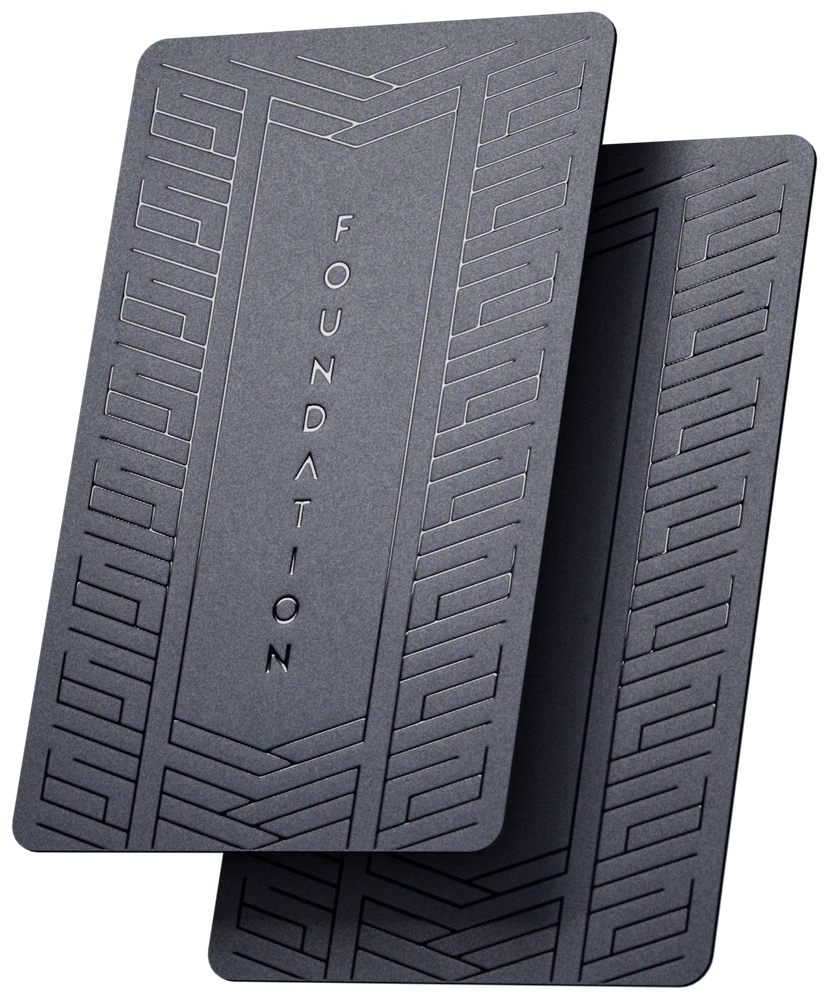
Never store your Keycards together. Any two Keycards from the same backup are enough to restore your Master Key. Keep each Keycard in a separate, secure location, and never leave them together in their envelope.
How Keycards Are Used
What is stored on each Keycard depends on how you set up your backup.
- Magic Backup, the default. Your Master Key is split into three parts using Shamir Secret Sharing . Two parts are written to Keycards, and the third is stored in Envoy, encrypted and backed up to your Apple or Google account. Any two parts restore your Master Key: two Keycards, or one Keycard and Envoy. Your third Keycard is a spare.
- 2 of 3 Keycard Backup, chosen during manual setup. Your Master Key is split into three parts, one on each Keycard. Any two of the three restore it.
Coming Soon
- Single Keycard backups. Write your complete Master Key to one Keycard. That Keycard will be able to restore your Master Key by itself, so it will need protecting as carefully as your seed words.
- Passphrases on Keycards. Save a wallet passphrase to a Keycard.
Keeping Your Keycards Safe
- Store each Keycard in a different secure location, so that no single place holds enough to restore your Master Key.
- Keep each Keycard in its Faraday sleeve. The sleeve blocks NFC, so a Keycard cannot be read wirelessly while it is inside.
- Check your Keycards from time to time with Verify Keycards, so you find out about a damaged card while you can still replace it.
Tapping a Keycard
Take the Keycard out of its Faraday sleeve and remove any case from Passport Prime. Center the Keycard horizontally over the camera area on the back of the device so the two form a "T" shape. Hold it between your thumb and index finger, off to the side.
Passport Prime vibrates when the Keycard is in the correct position. Keep still until it confirms, as saving to a Keycard takes a few seconds.
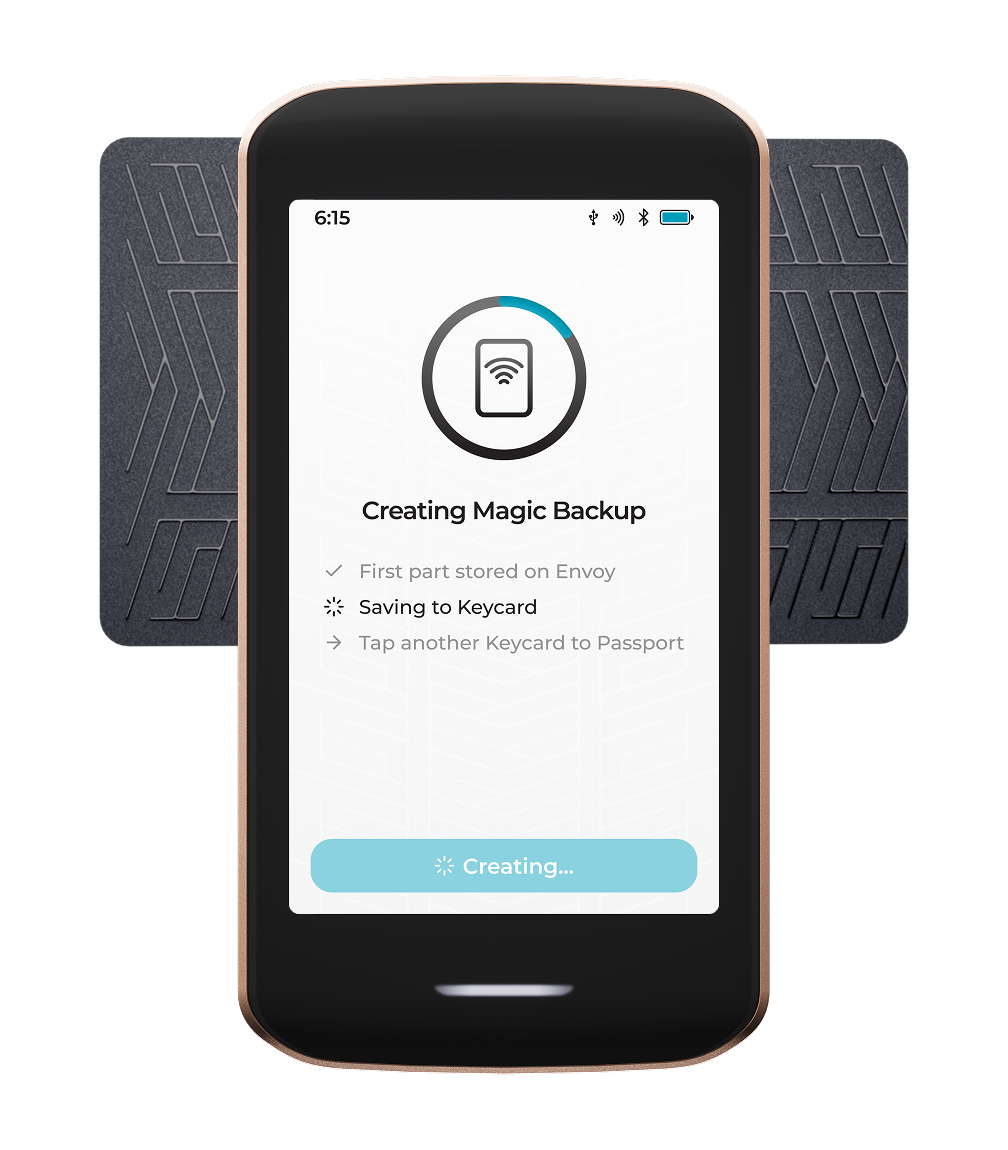
If a Keycard will not read, see Keycard troubleshooting .
What Would You Like to Do?
Keycard Video Guide
Have a question that isn't answered here? See the Keycard FAQs or get in touch .