Updating the firmware on Passport Prime ensures your device benefits from the latest features and security updates. Firmware should only ever be downloaded from Envoy, our GitHub or this support site.
The easiest way to update Passport Prime is via Envoy and the QuantumLink connection. Advanced users that prefer to manually download, verify and install their firmware can follow the instructions further down this page.
Update with Envoy
The easiest and fastest way to update the firmware on Passport Prime is via Envoy and the QuantumLink connection.
- Open the Settings screen on Passport Prime by tapping the gear icon in the dock at the bottom of the home screen
- Tap Update, then tap Check for New Version
- If an update is available, tap Update with Envoy
- Passport Prime will use its secure QuantumLink connection with Envoy to automatically download, verify, and install the update
- Once installed, Passport Prime will automatically restart
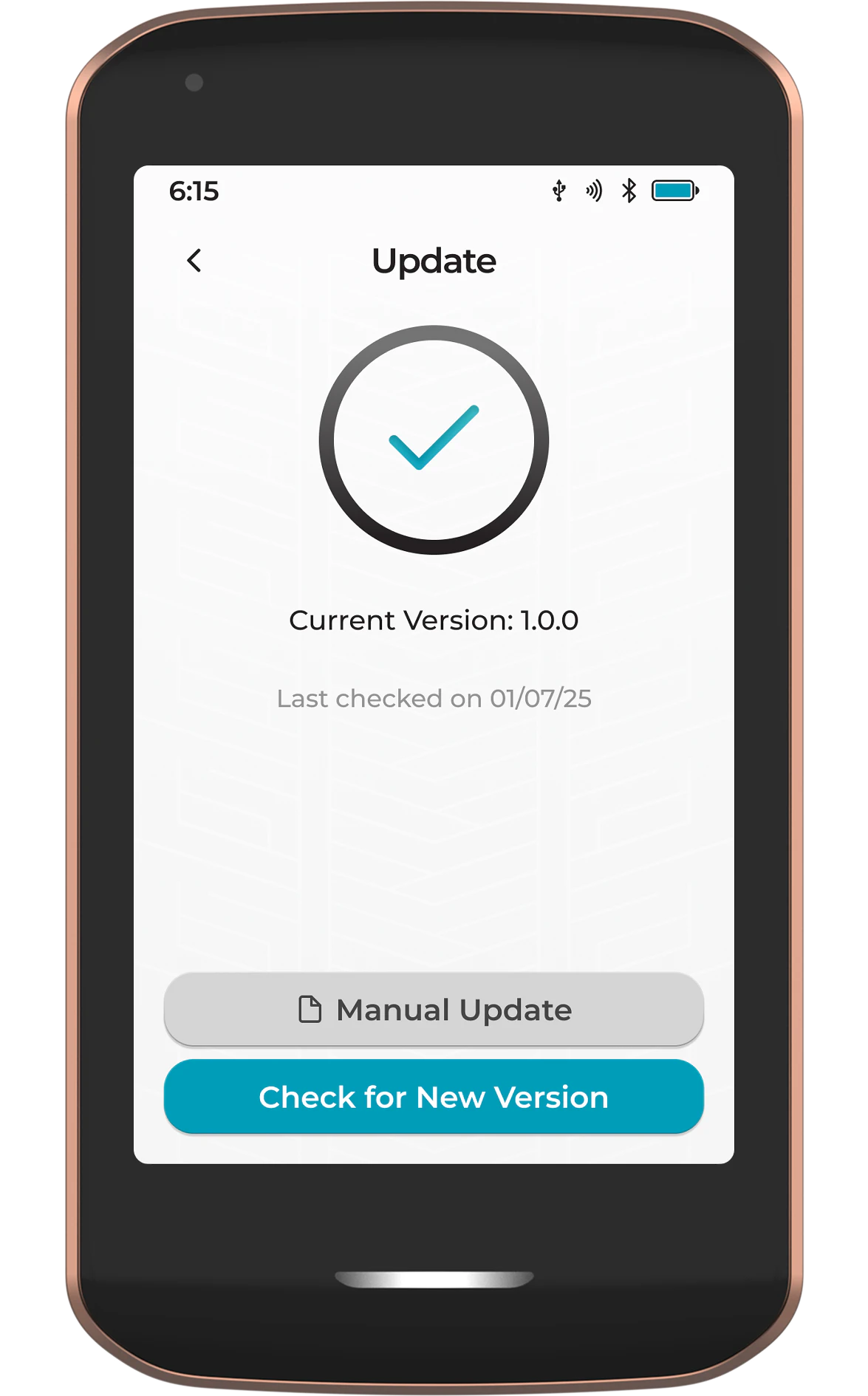
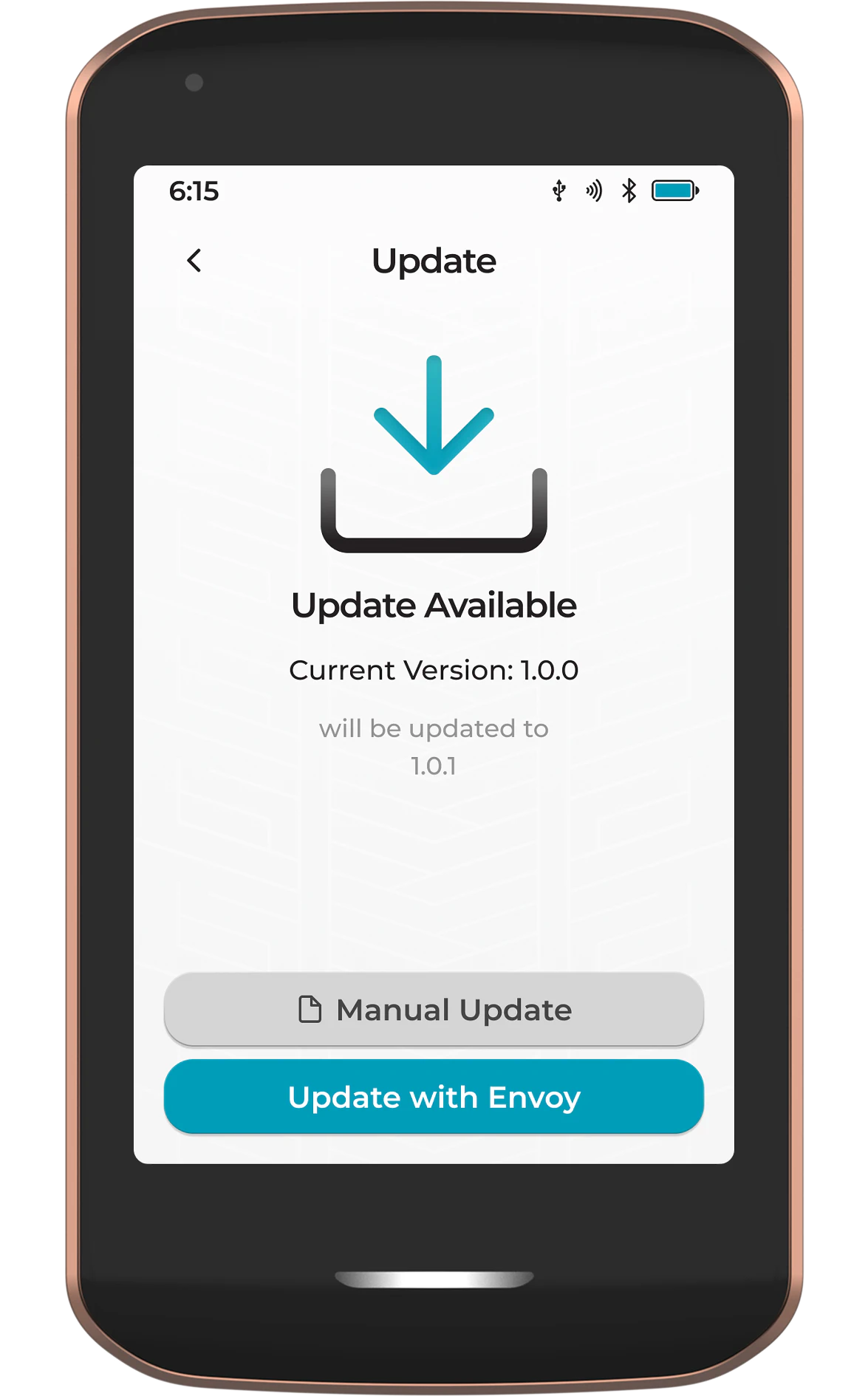
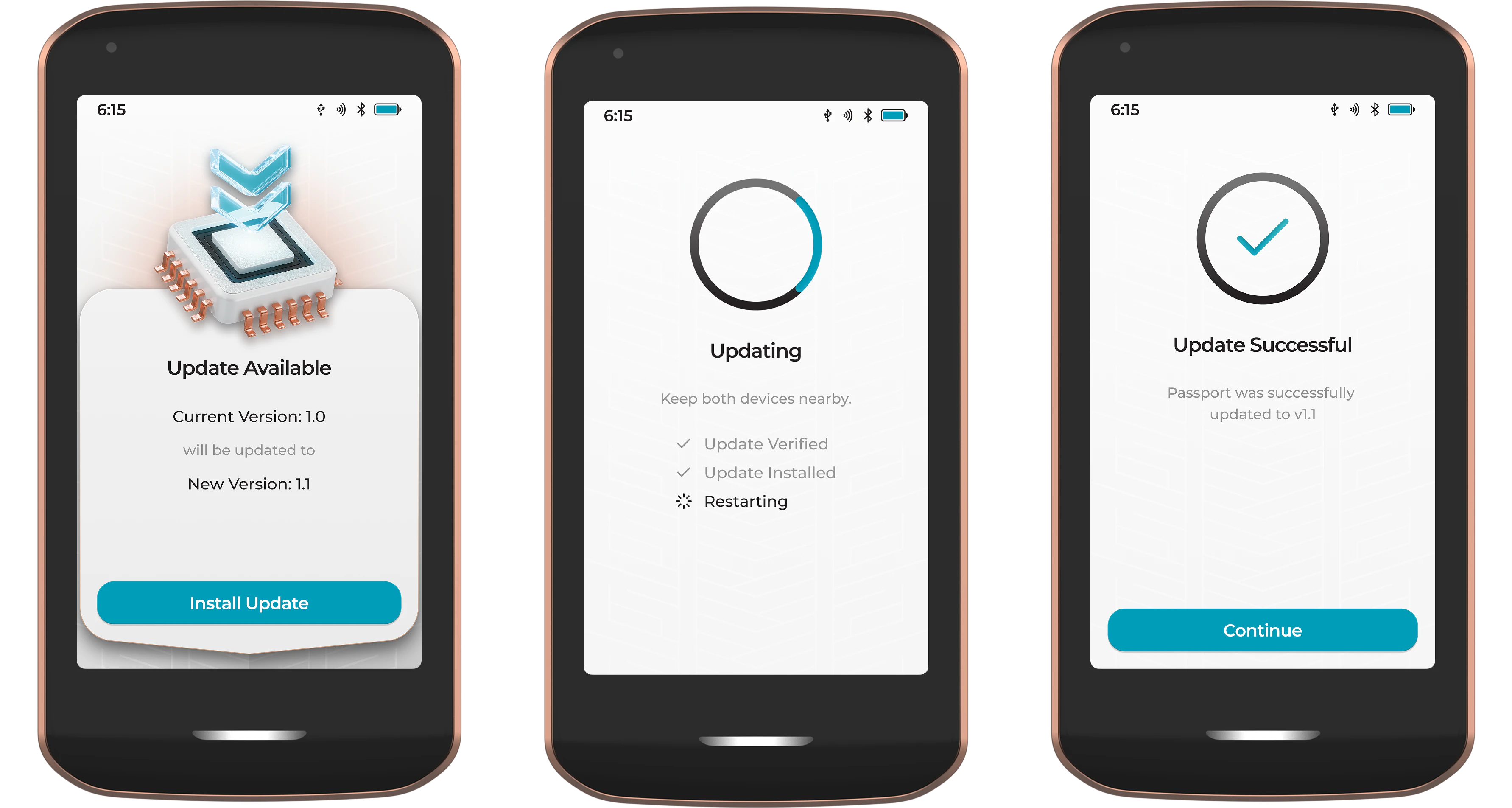
Ensure Passport Prime has sufficient battery charge before performing any firmware updates.
Manual Updates
The steps in this section require an already accessible Settings screen. If initial onboarding has not reached that stage, use Initial manual firmware transfer below instead. Avoiding Bluetooth for the firmware transfer does not remove Envoy from the current initial connection and security-check process.
Some users may prefer to manually download and verify their own firmware before installing on Passport Prime.
Every KeyOS release publishes an update file named KeyOS-v<current>-to-v<new>-Update.tar. Each one moves the device from one specific version to the next, so download the file whose starting version matches what you are running now. You can check your current version under Settings > Update.
- Download the .tar update file from the link below, or directly from GitHub
- Optionally verify the file using the steps below
- Get the file onto Passport Prime, using either of these routes:
- External storage. Copy the .tar onto a USB drive or microSD card, then insert it into Passport Prime's USB-C port
- Airlock. Connect Passport Prime to your computer over USB-C, set the Airlock to Airlock Read and Write from the three dot menu in the Files app, then copy the .tar across and disconnect
- On Passport Prime, open the Settings screen, tap Update, then tap Manual Update
- Select the .tar file from the file picker
- Tap Install Update
The update file has to be on external storage or in the Airlock. Passport Prime does not offer files held in its internal storage when you choose Manual Update.
Once the update has been installed, Passport Prime will automatically restart.
Initial manual firmware transfer
For the initial update to KeyOS 1.4.0, use the signed KeyOS-v1.4.0-Recovery.bin from the official release. This is a different file and workflow from a version-specific Update.tar.
- Ensure Prime has sufficient battery charge and preserve any existing Master Key and data backups. If recovery or backup safety is uncertain, contact Foundation support before continuing.
- Copy KeyOS-v1.4.0-Recovery.bin to a USB-C drive, or a microSD card used with a USB-C reader.
- Power Prime off, then turn it on with one press of the power button.
- While the Foundation logo is displayed, press the power button repeatedly to open the boot menu.
- Select Recovery > Firmware Recovery.
- Connect the external storage and select KeyOS-v1.4.0-Recovery.bin.
- Let the installation finish and Prime restart. Do not disconnect storage or interrupt power during installation.
Use Firmware Recovery, not an erase or factory-reset option. Do not substitute CoreSystemRecovery.bin, another version's image, or an Update.tar. These instructions are specific to the initial 1.4.0 update; an unavailable file or different recovery situation needs Foundation support. Envoy is still needed to finish the current initial onboarding process.
Verifying the Firmware
Passport Prime will only install firmware that has been signed by 2-of-4 Foundation Devices keys. This check happens automatically during installation, regardless of the update method used.
Advanced users who wish to independently verify the firmware before installing can follow the steps below.
Source Verification
To verify the firmware was published by a legitimate source, we sign all firmware releases with our PGP key. The public key can be imported from our website or downloaded directly below.
Once downloaded, import the key using:
gpg --import foundation_key.pgp
The key ID should be CFE1890AB7FC8B64 and the fingerprint is 5DBE 7F18 5293 9353 15E5 6E31 CFE1 890A B7FC 8B64.
Next, download the signature file (.sig) published alongside the update file on GitHub. Place it in the same folder as the update file and run:
gpg --verify KeyOS-v1.3.2-to-v1.4.0-Update.tar.sig
Amend the file name to match the version you are verifying. For this step to be considered successful, look for the term Good signature.
WARNING: This key is not certified with a trusted signature means that PGP doesn't place a high level of trust in the key downloaded from the internet. For this to be a fully trusted key, it would need to be verified in person. Due to practicalities, most people do not do this and instead look to verify a key from multiple different online sources.
Contents Verification
Advanced users can verify the integrity of the firmware contents prior to installing by using the sha256 function in their terminal.
shasum -b -a 256 KeyOS-v1.3.2-to-v1.4.0-Update.tar
Every release publishes a matching .sha256 file alongside the update, so compare the hash your terminal prints against the contents of that file. An .md5 file is published too if you prefer to check that instead.
Amend the file names to match the version you are verifying.
Check Version
To see which firmware version your device is currently running, open the Settings screen by tapping the gear icon in the dock at the bottom of the home screen, then tap Update. This screen shows the currently installed firmware version. Tapping Check for New Version will tell you whether you are already up to date.
The installed version is also listed under Settings > About, alongside your device serial number and Master Key fingerprint.
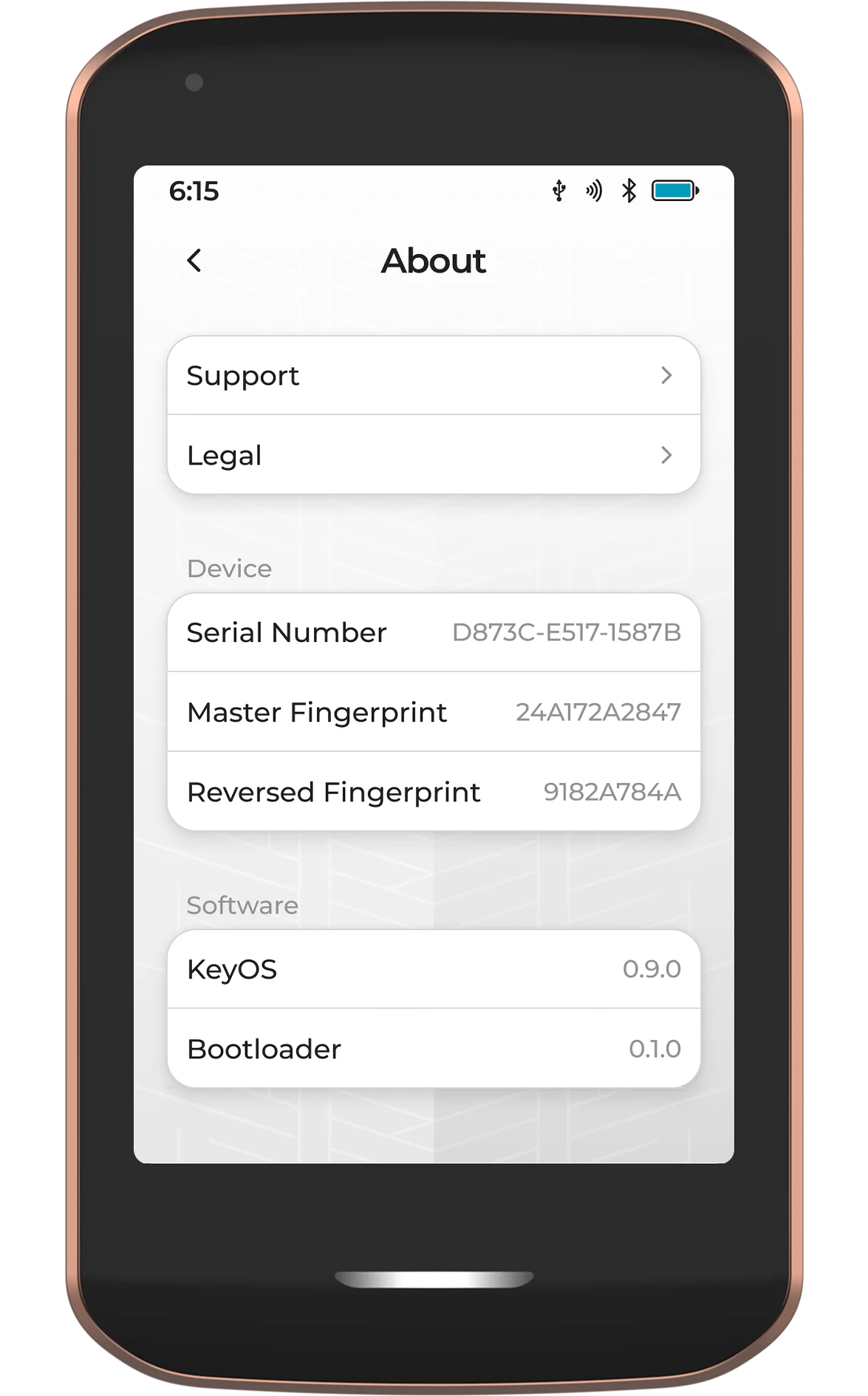
You can also see the installed version in Envoy on the Devices screen, where a small red dot appears next to the firmware version when an update is available.
A full list of what changed in each release, including any security fixes, is published with every version on our GitHub .