Updating the firmware on Passport Prime ensures your device benefits from the latest features and security updates. Firmware should only ever be downloaded from Envoy, our GitHub or this support site.
The easiest way to update Passport Prime is via Envoy and the QuantumLink connection. Advanced users that prefer to manually download, verify and install their firmware can follow the instructions further down this page.
Update with Envoy
The easiest and fastest way to update the firmware on Passport Prime is via Envoy and the QuantumLink connection.
- Open the Settings screen on Passport Prime by tapping the two horizontal lines in the bottom-left corner of the home screen
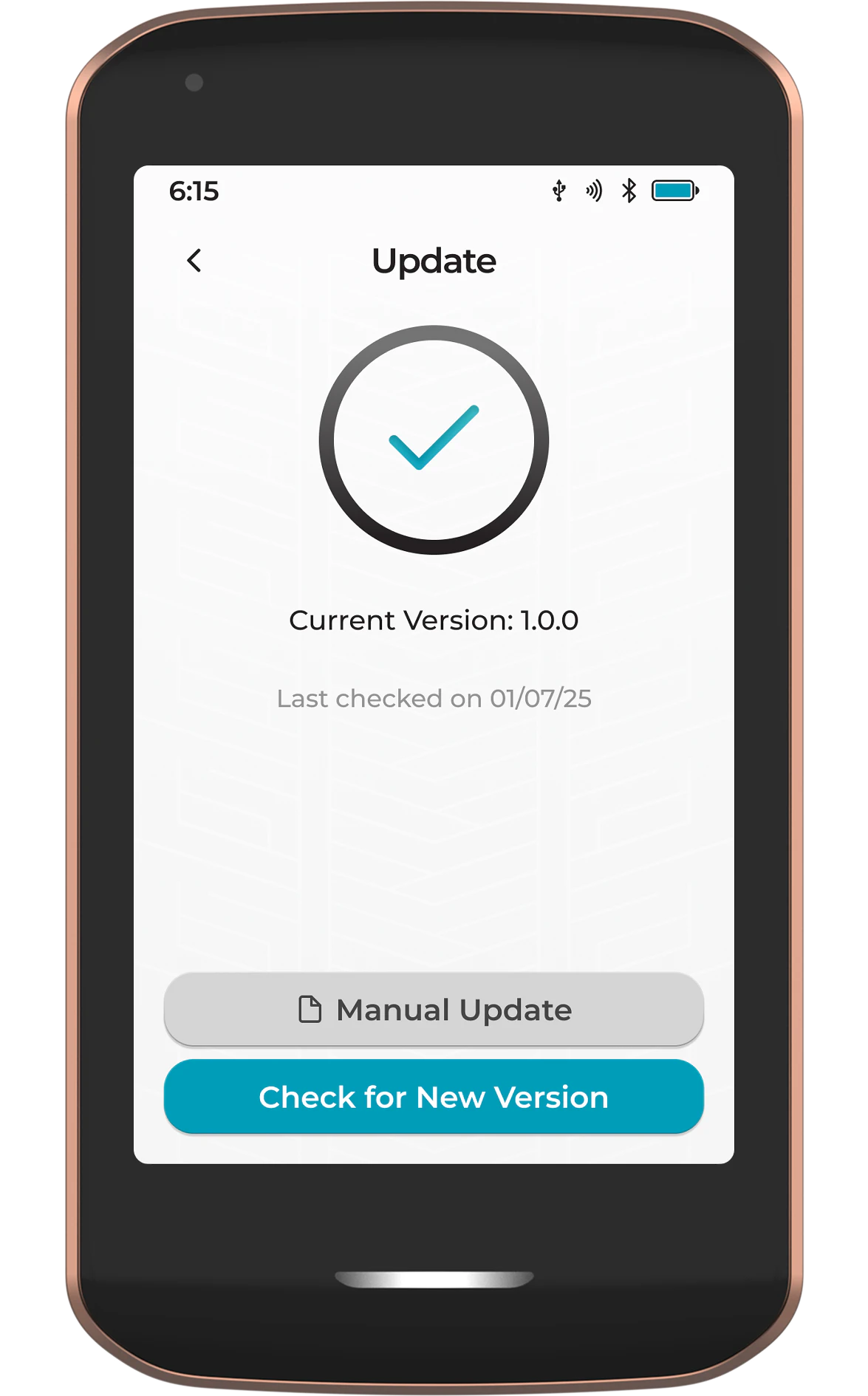
- Tap Update, then tap Check for New Version
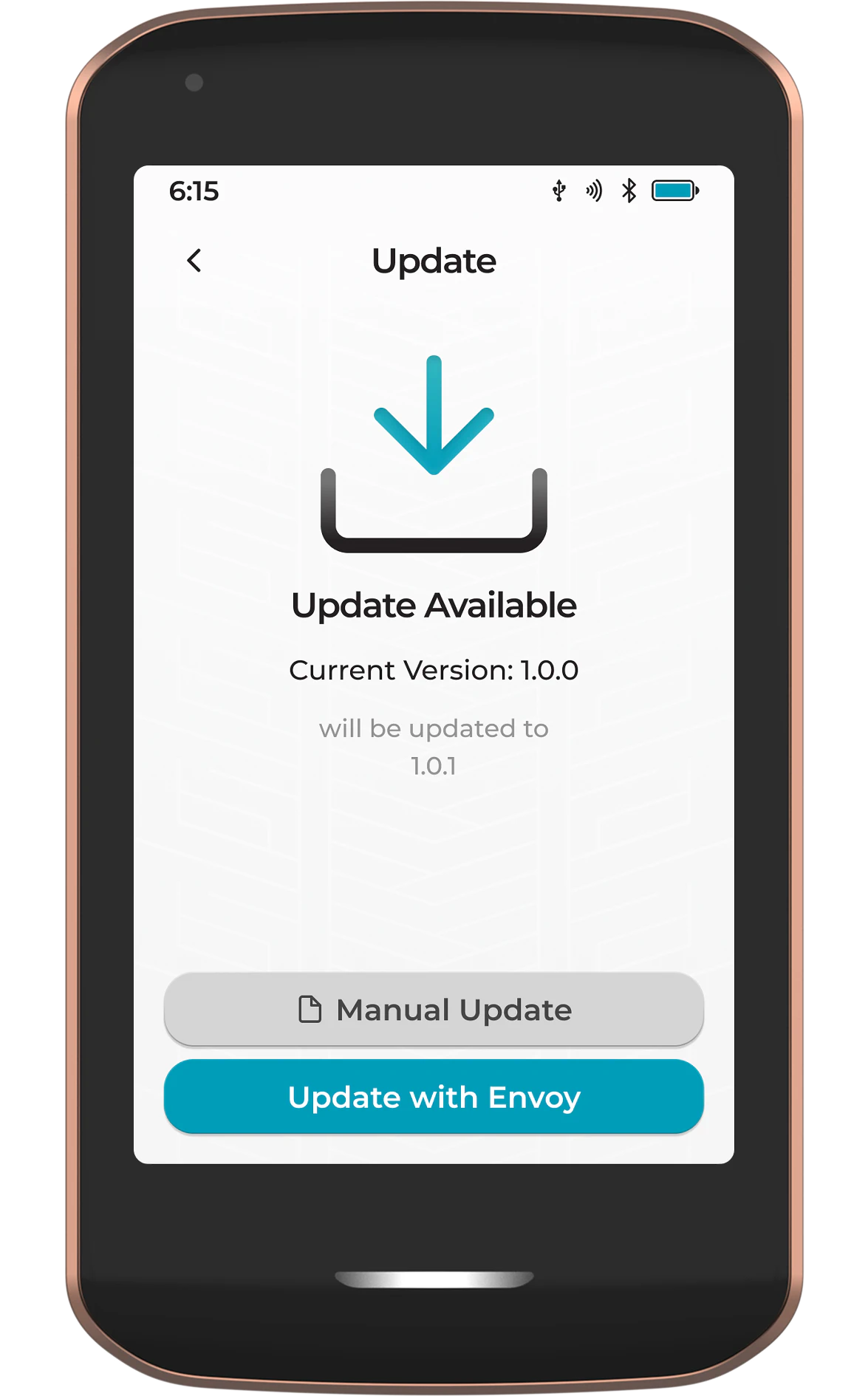
- If an update is available, tap Update with Envoy
- Passport Prime will use its secure QuantumLink connection with Envoy to automatically download, verify, and install the update
- Once installed, Passport Prime will automatically restart
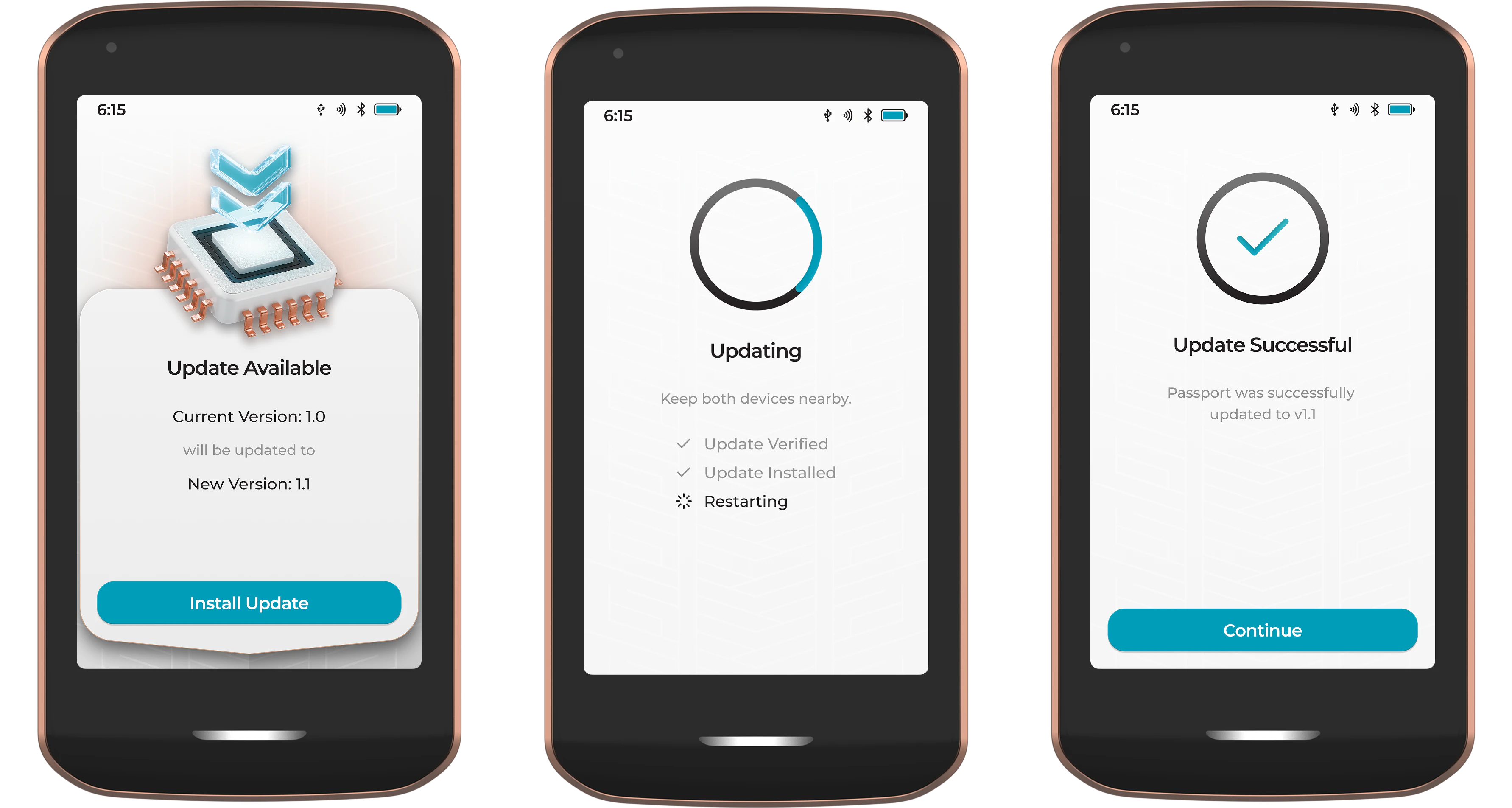
Ensure Passport Prime has sufficient battery charge before performing any firmware updates.
Manual Updates
Manual firmware updates for Passport Prime are coming soon. In the meantime, please use the Envoy update method described above.
Some users may prefer to manually download and verify their own firmware before installing on Passport Prime.
- Download the firmware .bin file from the link below, or directly from GitHub
- Optionally verify the firmware using the steps above
- Copy the firmware file to external storage (USB drive or microSD card)
- Insert the storage media into Passport Prime's USB-C port
- On Passport Prime, open the Settings screen, tap Update, then tap Manual Update
- Select the .bin file from the file picker
- Tap Install Update
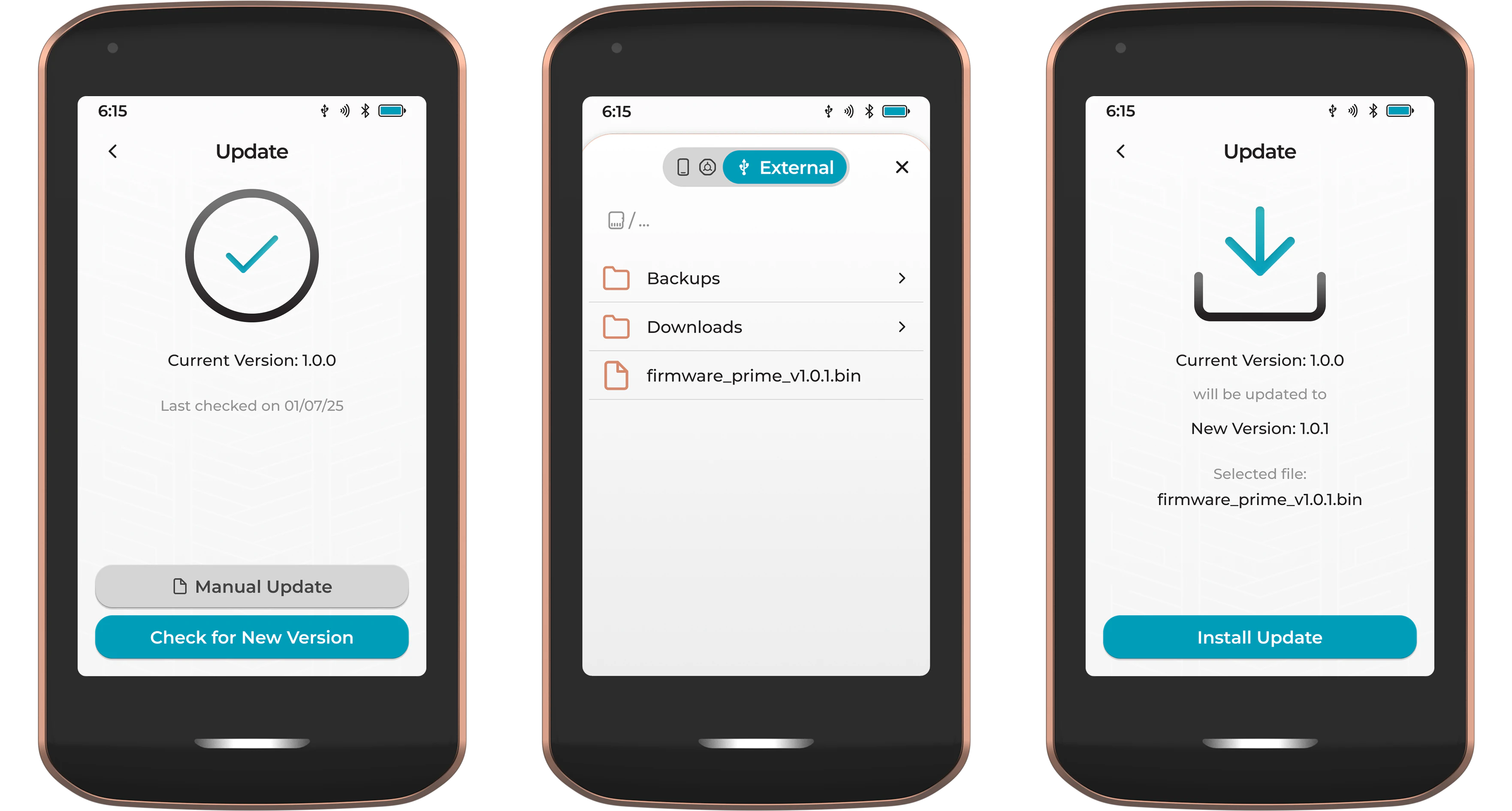
Before installing, Passport Prime will verify that the file has been signed by 2-of-4 Foundation Devices keys. Once the update has been installed, Passport Prime will automatically restart.
Verifying the Firmware
Passport Prime will only install firmware that has been signed by 2-of-4 Foundation Devices keys. This check happens automatically during installation, regardless of the update method used.
Advanced users who wish to independently verify the firmware before installing can follow the steps below.
Source Verification
To verify the firmware was published by a legitimate source, we sign all firmware releases with our PGP key. The public key can be imported from our website , GitHub or downloaded directly below.
Once downloaded, import the key using:
gpg --import foundation_key.pgp
The key ID should be CFE1890AB7FC8B64 and the fingerprint is 5DBE 7F18 5293 9353 15E5 6E31 CFE1 890A B7FC 8B64.
Next, download the signature file (.sig) published alongside the firmware release on GitHub. Place it in the same folder as the firmware file and run:
gpg --verify file-name.bin.sig
The above command should be amended to match the firmware version being verified. For this step to be considered successful, look for the term Good Signature.
WARNING: This key is not certified with a trusted signature means that PGP doesn't place a high level of trust in the key downloaded from the internet. For this to be a fully trusted key, it would need to be verified in person. Due to practicalities, most people do not do this and instead look to verify a key from multiple different online sources.
Contents Verification
Advanced users can verify the integrity of the firmware contents prior to installing by using the sha256 function in their terminal. The resulting hash can then be compared with the one published on GitHub .
shasum -b -a 256 file-name.bin
Ensure the firmware version in the command matches the file being checked.